
Your download is starting
The disk image (.dmg) should begin on its own in a moment. It runs on both Apple Silicon and Intel Macs.
Opening it the first time
The app is signed but not yet notarized by Apple, so macOS blocks the first launch. You only do this once.
- 1
Open the .dmg and drag MilkMind into the Applications folder.
- 2
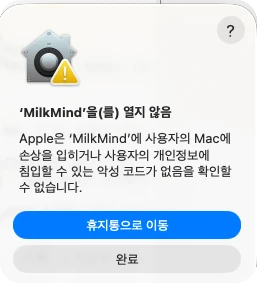
Open MilkMind. macOS says “MilkMind” Not Opened — click “Done” (not “Move to Trash”).
- 3
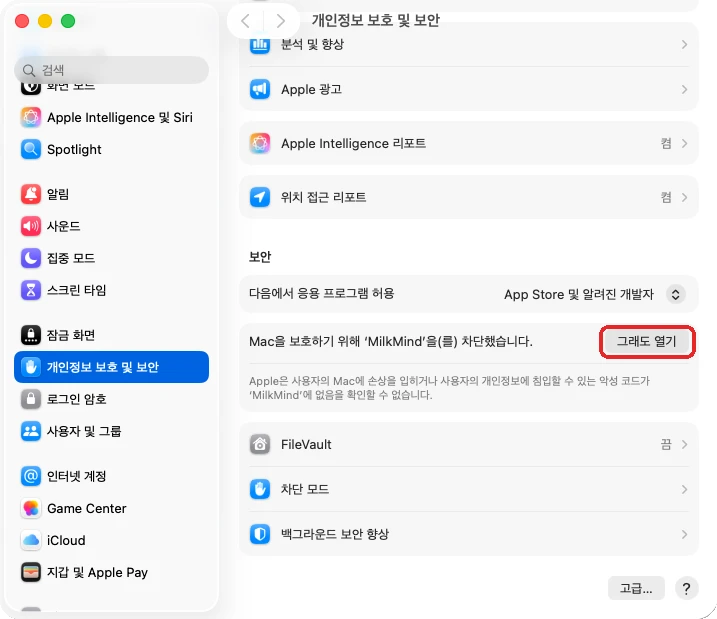
Open System Settings → Privacy & Security and scroll down to Security. Next to “MilkMind” was blocked to protect your Mac, click “Open Anyway”.
- 4
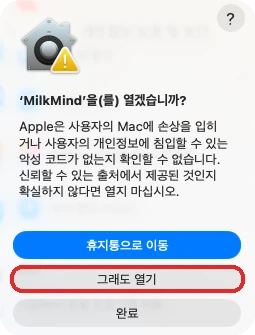
macOS asks once more — click “Open Anyway” again and confirm with your password.
From then on it opens like any other app — and updates itself.
Hear what comes next
This app updates itself, so new builds arrive on their own. Email carries release notes, new posts, and launch news.
Subscribers get a discount when it launches.