
The peechcookie Guide
Covers version v0.150.x
peechcookie is a dual-pane file manager.
Left and right. Two panels. You pick on one side and send it to the other.
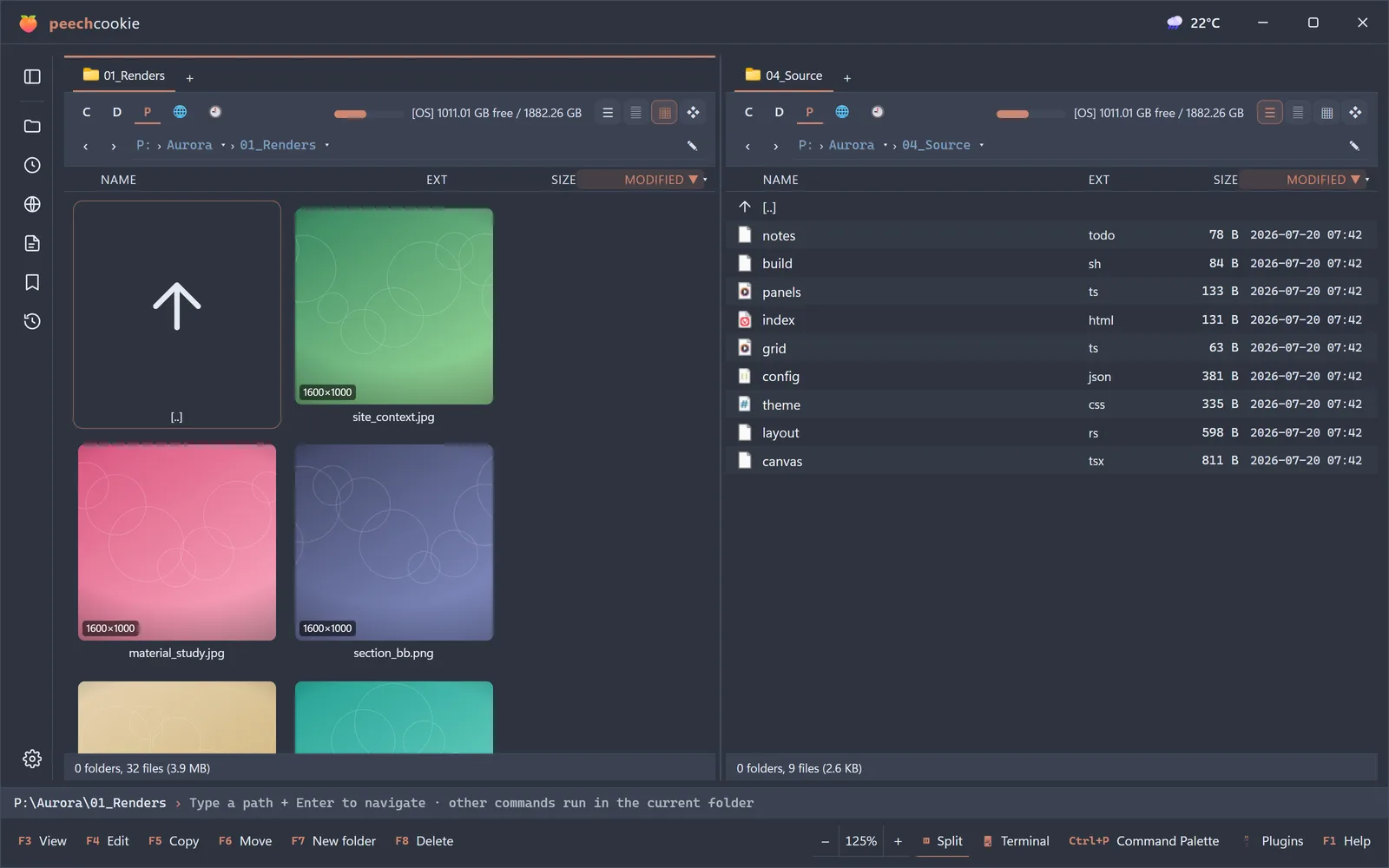
Four keys get you started.
Learn these first.
Tab— switches panels. The one your cursor is in is the active panel.Enter— opens. Folders, archives, programs — allEnter.Ctrl+P— finds and runs anything. Type a folder name and you’re there.F1— shows every shortcut. When you can’t remember, it’s here.
F5 copies. F6 moves.
That’s a day’s worth of usage.
There are only three principles.
Know these and the rest of the app is mostly predictable.
Everything goes from the active panel to the other one
You don’t pick a destination each time. The destination is whatever folder the other panel is showing.
So the only preparation for moving a file is putting the destination in the other panel.
After that it’s F5 or F6.
If you’ve used Total Commander, your hands already know this.
Look before you open
Press Ctrl+Q and a preview pane follows your cursor.
F3 opens the file in a viewer.
Images, PDFs, Hangul documents, PSDs, 3D models, spreadsheets — all rendered in place. You never launch the original app just to check something.
Half the reason files end up named final_real_final_2.psd is that opening them is a chore.
You can undo it
Copy, move, rename, and send-to-recycle-bin all come back with Ctrl+Z.
The operation log in the sidebar keeps this session’s work item by item, so you can pick one specific operation and undo just that.
⚠️ The exception is Shift+F8, permanent delete. That one doesn’t come back.
How to read the notation.
Shortcuts are given for Windows.
Settings ▸ Integration ▸ Editor is a menu path.
Settings opens with Ctrl+,.
Num+ is the + on the numeric keypad.
⚠️ marks a place where peechcookie does something other than what you’d expect. If you’re in a hurry, skim only those.
The screenshots from here on were taken with the Korean UI. The layout is identical in English — only the labels differ.
Every shortcut here is a default, and every one of them can be changed. (Chapter 5)
Contents
- 01Getting startedReading the first screen, moving around, and selecting files.
- 02Working with filesCopy, move, delete, tabs and panels, and ZIP.
- 03Looking and findingPreview and viewer, search, and the sidebar.
- 04Reaching furtherRemote servers, Total Commander plugins, and the terminal.
- 05Making it yoursBookmarks, settings, themes, key remapping, and launch arguments.
- 06When you get stuckThe seven things people run into, and what to do.
- 07Every shortcutAll the defaults. All of them changeable.