05
Making it yours
Bookmarks, settings, themes, key remapping, and launch arguments.
It works on the defaults.
This chapter is about the parts that don’t fit your hands.
Bookmarks can carry arguments.
Ctrl+D toggles the current folder as a favorite.
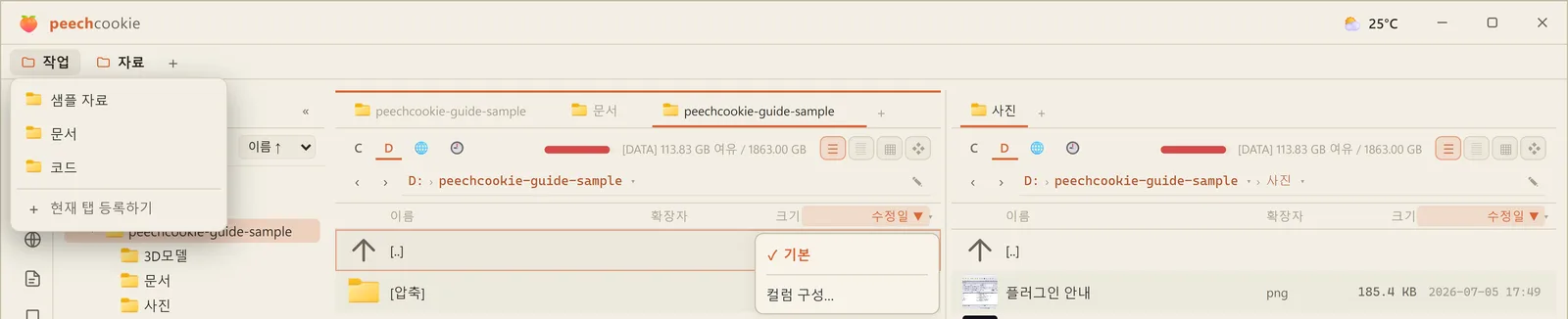
The bookmark bar is the strip under the title bar. Turn it on in Settings ▸ Navigation.
It holds folders and files in groups, and you add to it by dragging onto an empty slot.
Ctrl+P also jumps to favorites and recent folders, sorted by frequency.
Placeholders
A bookmark can carry launch arguments, and those arguments take placeholders.
%P is the current path. %S is the selection.
So “open this folder in that program” or “hand the selected files to this tool” becomes a single bookmark.
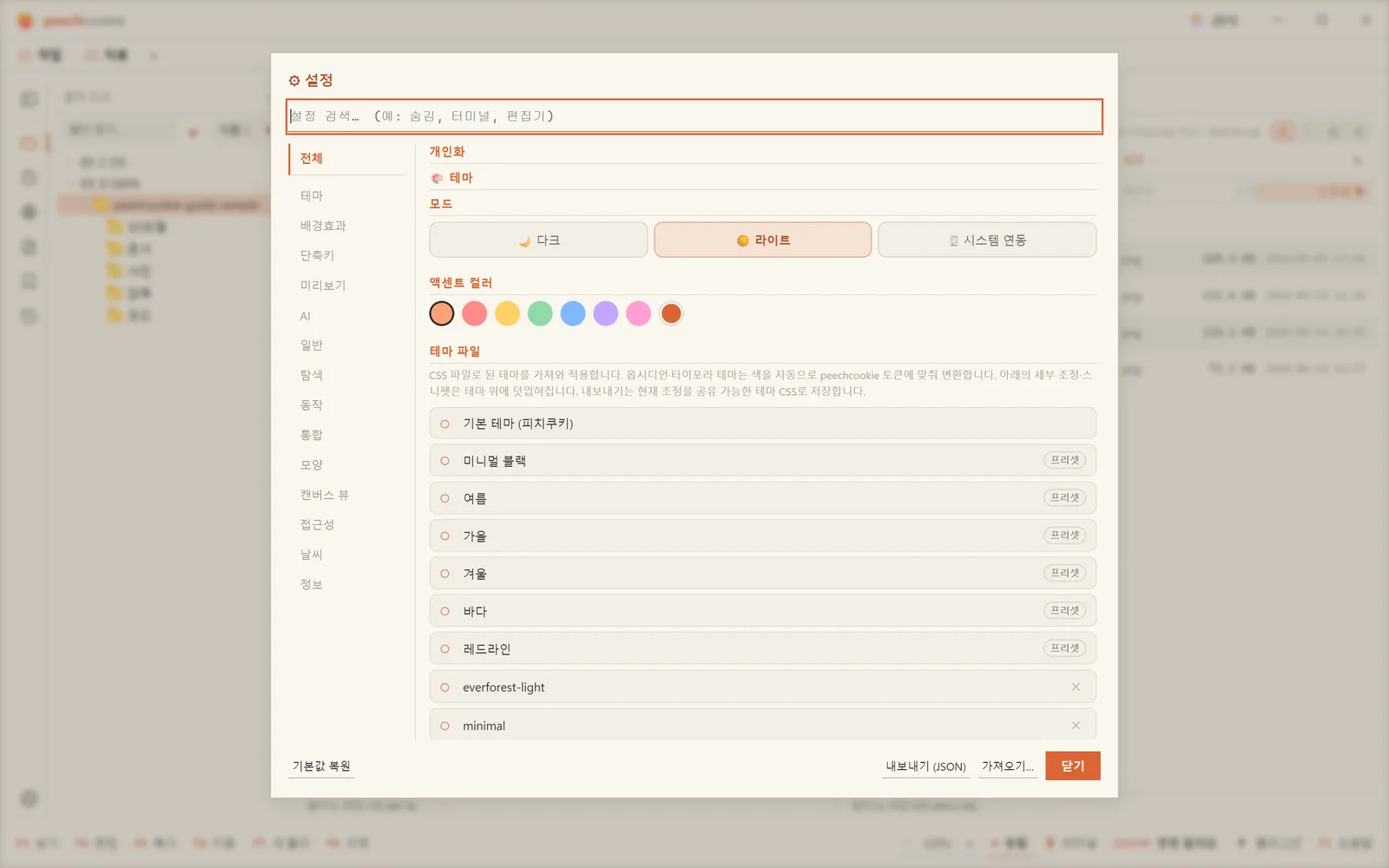
Settings is Ctrl+,.
Ctrl+P → “settings” works too.
Tabs run down the left, and the All tab lays every option out on one screen. When you don’t know where something lives, the search box at the top is faster.
General
- Language — English / Korean. Changing it reloads the app.
Navigation
- Restore tabs on start — all / locked only (default) / from scratch
- Start with a single panel
- Remember window position and size — including maximized state (off by default)
- Show hidden files — same as
Ctrl+H - Show bookmark bar / show top menu bar (off by default) / show calendar in sidebar
- Notes folder — empty means
notes/in the app settings folder - Show command line + target panel + use active panel for paths
- Show full tab names / locked tabs as icons only
Behavior
- Auto-refresh (on by default)
- Confirm recycle-bin delete (on by default)
- Click clears the previous selection — on is Explorer-style (default), off keeps the selection like Total Commander
- Git awareness / cloud sync awareness / per-app file icons / overlay icons
- Quick find mode — move cursor (default) / filter list
- Open F3 in a separate window / autoplay media in preview / loop media
Integration
- Folder search mode (
Ctrl+P) — built-in (favorites and recent) / Everything - Terminal — PowerShell / cmd / Windows Terminal (+ WT profile)
- Editor — the program
F4uses - rclone cloud remotes + the path to the rclone executable
Appearance
- Selected file style — inverted (default) / bold / outline / outline glow
- Cursor row style — outline (default) / filled / outline glow
- Mouse pointer glow
- Default thumbnail size — small / medium / large / extra large
- List thumbnails (details and brief) — off (icons) / small / medium / large
- Thumbnail disk cache — check usage and clear it
- Pin the top and bottom bars when zooming —
Ctrl+wheelthen scales only the list in the middle
Canvas view
Card borders and their width, title backgrounds, corner rounding, group borders, snapping and its spacing (4–32px), layout spacing, and edge shape (curved, straight, orthogonal). (Chapter 3)
Preview
For each extension, you decide how Ctrl+Q and F3 open it —
images, audio, video, PDF, text, code, markdown, CSV.
What you set wins over the built-in rules, and the built-in defaults are listed read-only underneath.
AI
Pick a provider (currently OpenRouter), set a default model, and register an API key.
The model field autocompletes from the provider’s list, showing context length and price. Check key verifies it and shows your usage.
The key goes into the Windows Credential Manager, so it’s never sitting in plain text.
Accessibility
- Reduce motion / high contrast — follow system / on / off
Weather
- Show weather + city (empty means detect by IP) + temperature unit
Export and import
Not just settings.
Favorites, sort orders, and tab sessions — all the pc-* data — export to and import from one JSON file.
Moving to a new PC or making a backup is that one file.
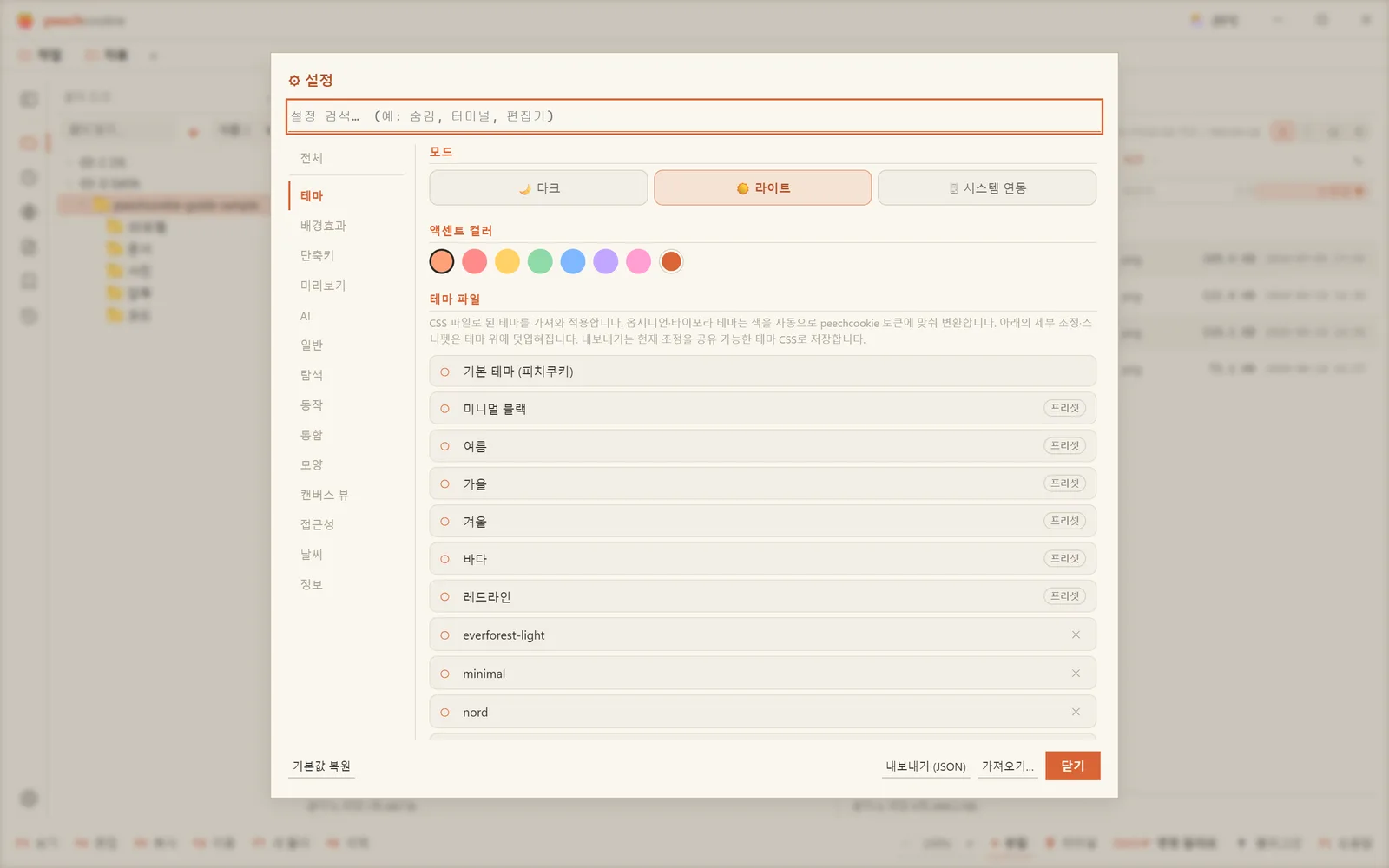
Themes can be imported.
- Mode — light (paper) / dark / follow system
- Accent color
- Six built-in presets — minimal black · summer · autumn · winter · sea · redline (each with a light and a dark side)
- Import and export CSS themes, with fine-grained color and shape variables
- Colors by file type, striped rows
- Background image — with fit options and a scrim slider
Background effects
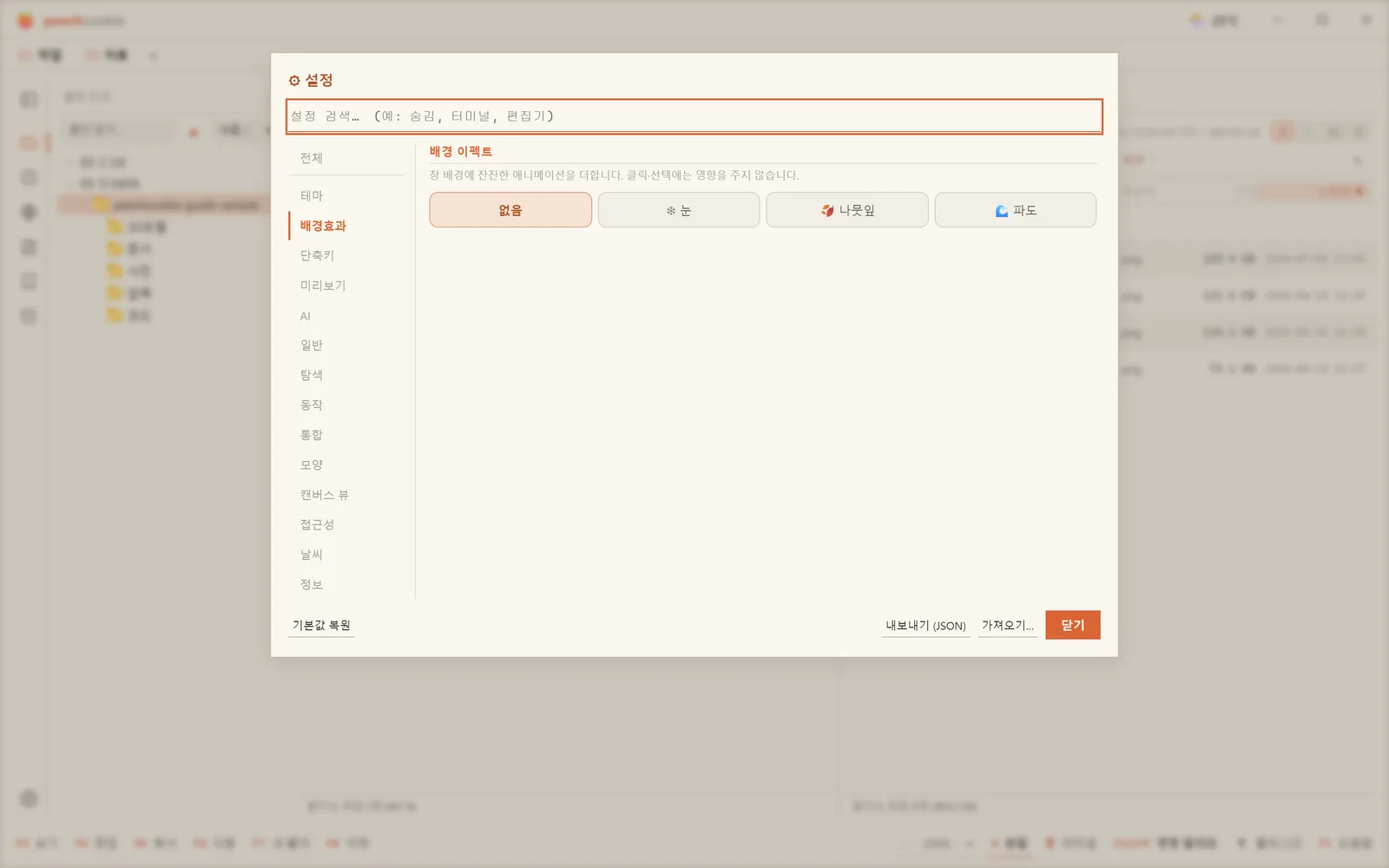
Settings ▸ Background effects lays a quiet animation over the whole window — snow, leaves, or waves.
The default is none.
It sits below modals, never gets in the way of clicking or selecting, and takes its colors from the theme. Speed, amount, size, opacity, and color are sliders, with ↺ to reset.
UI scale
Ctrl+wheel, orCtrl +/Ctrl −— scales text, icons, and spacing together from 50% to 300%Ctrl 0— back to 100%- The
− 100% +control on the bottom bar does the same, and the scale is saved.
If the list is too small on a high-resolution monitor, this is the fix.
Every shortcut can be changed.
F1 cheat sheet → edit shortcuts, or Ctrl+P → “remap shortcuts”.
- Any command’s key can be changed, and one command can hold several bindings.
- Conflict detection flags a combo bound to more than one thing.
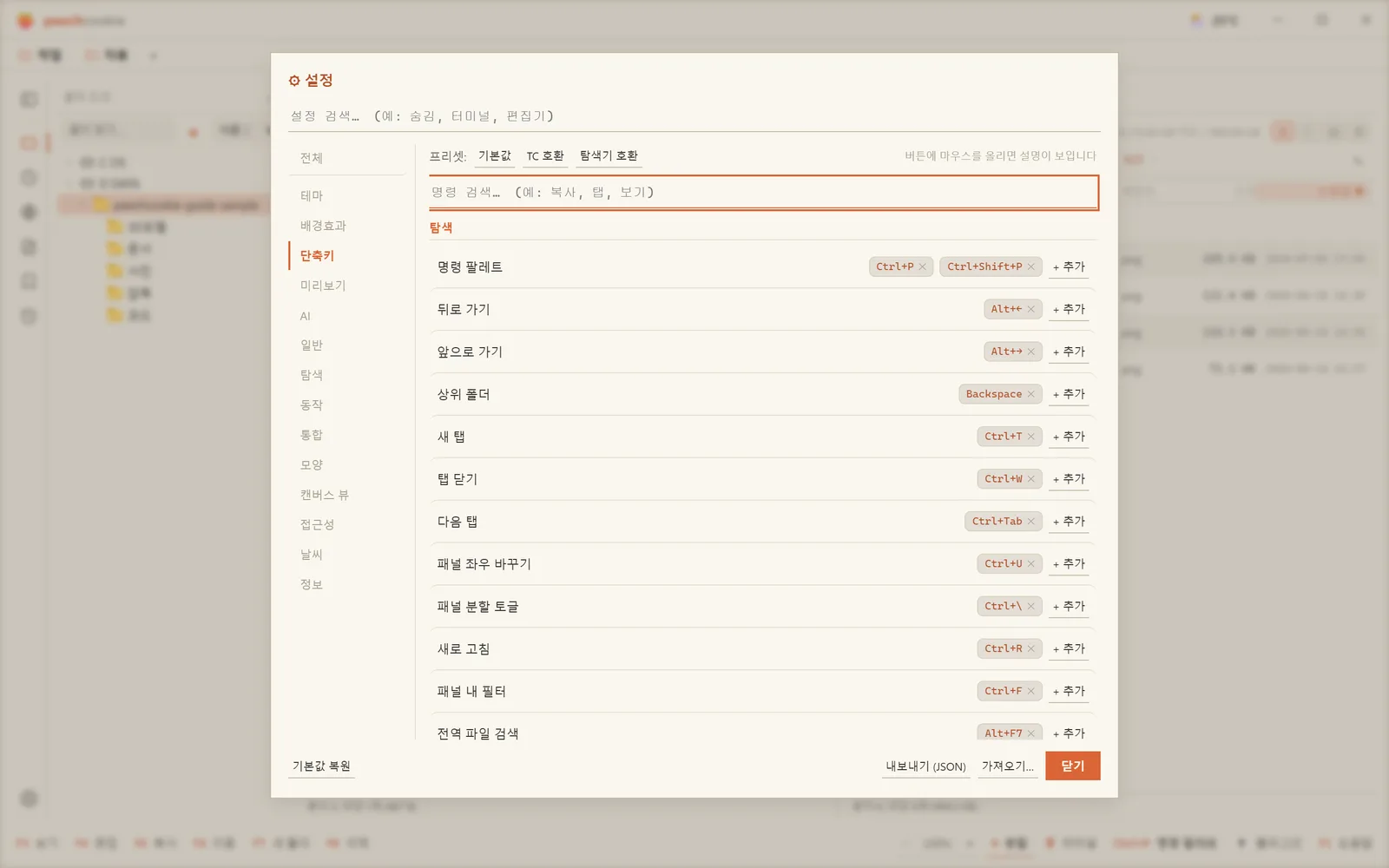
Three presets
- Default — peechcookie’s own keys
- TC compatible —
Shift+F6rename,F2refresh,Ctrl+F1/F2view modes - Explorer compatible —
F5refresh,Ctrl+C/X/V,Ctrl+Shift+Nnew folder,Ctrl+Fsearch
⚠️ Structural keys for list navigation are reserved and can’t be remapped:
Enter, Tab, Space, Esc, and the arrow keys.
You can open it with arguments.
Some Total Commander-compatible parameters are supported. Flag case doesn’t matter.
peechcookie.exe [path1] [path2] [options…]| Parameter | Effect |
|---|---|
path1 [path2] | Left = path1, right = path2 (quote paths with spaces) |
/L=path | Left panel path |
/R=path | Right panel path |
/P=L · /P=R | Active panel at start |
/T | Open the path in a new tab |
/S=L file | Open the file in the built-in viewer |
/M=0|1|2 | Theme — 0 light / 1 system / 2 dark |
/O · /N | Activate running instance / new window |
If the path is a file, it opens that file’s folder with the cursor on it. Relative paths resolve against the calling working directory.
peechcookie.exe D:\work C:\
peechcookie.exe /R=D:\dl /P=R
peechcookie.exe /T C:\logs
peechcookie.exe /S=L readme.txt
⚠️ Being single-instance, even /N won’t spawn a second window. Arguments always go to the existing one.
Postscript. You don’t need to change all of it.
Most of this stays on defaults.
The two people actually change are the editor path and the shortcut preset.