04
Reaching further
Remote servers, Total Commander plugins, and the terminal.
The panels don’t only look at local disks.
You can mount a remote server in one, bring a decade of Total Commander plugins with you, and open a real terminal underneath.
Mount a remote server in a panel.
Ctrl+N, or Network in the sidebar.
Once mounted, it behaves like a local folder.
F5 becomes upload and download, new folder / rename / delete all work,
and everything runs through progress chips you can cancel.
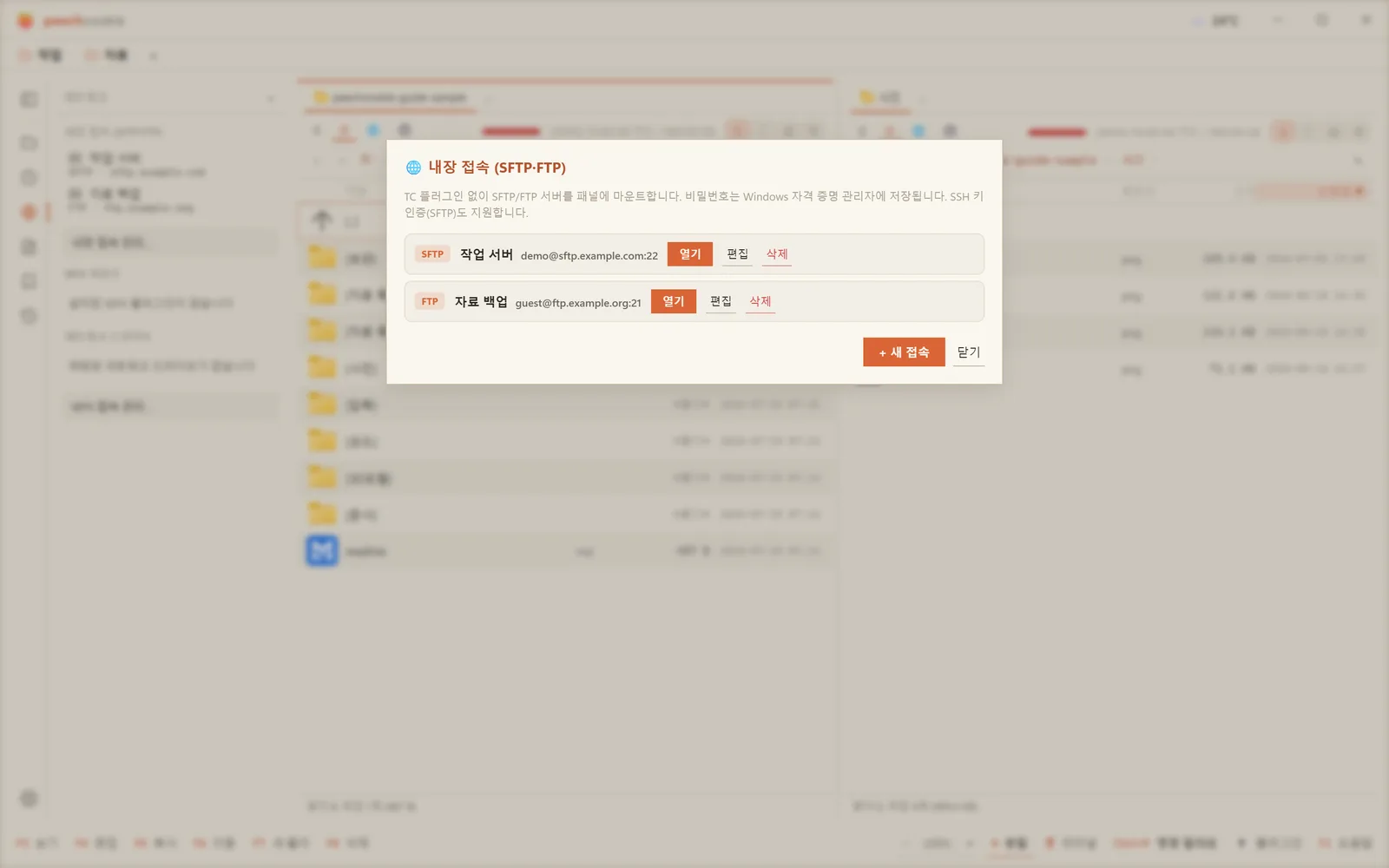
Built-in SFTP and FTP
No plugin needed. It’s pure Rust, built in.
Network bar ▸ Manage built-in connections…
- Enter host and port
- Choose authentication — password / SSH key / anonymous
- Set a base folder
- Test connection, then save
Passwords go into the Windows Credential Manager, not a config file.
WFX — Total Commander virtual filesystems
TC’s WFX plugins for FTP, SFTP, WebDAV and the rest mount as they are.
Open them from the 🌐 network entry under Ctrl+N.
The operations are the same as the built-in connections, and passwords also go to the Credential Manager.
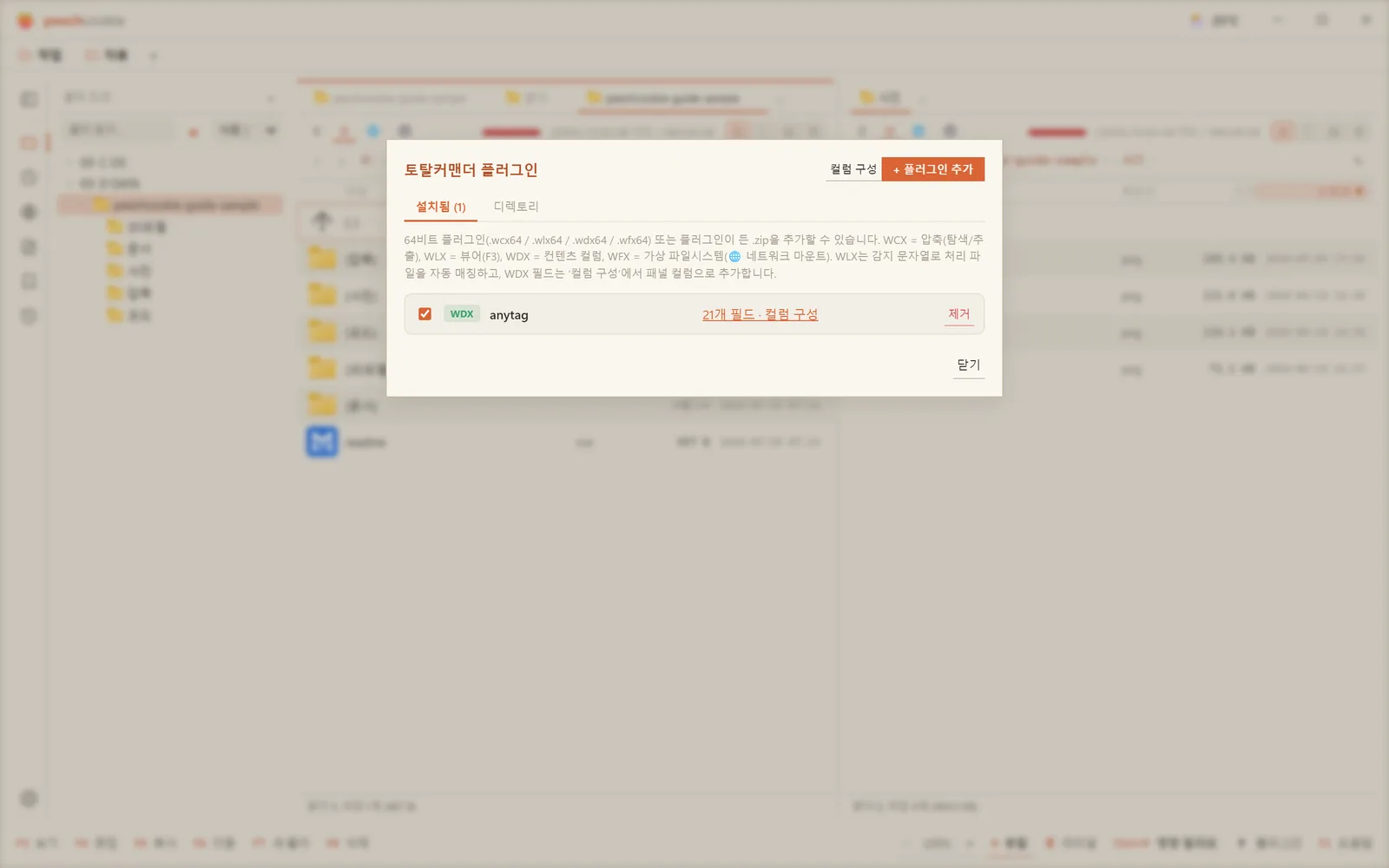
Total Commander plugins run as they are.
⚠️ 64-bit plugins only.
That’s .wcx64, .wlx64, .wdx64, and .wfx64.
| Kind | Role | How it shows up |
|---|---|---|
| WCX | Archives | Browse an archive like a folder, extract a selection with F5, open files inside directly |
| WLX | Lister (viewer) | F3 opens the native plugin viewer, matched automatically by detect string; Ctrl+F searches inside |
| WDX | Content | Fields like image dimensions, EXIF, and media metadata become custom columns in details view |
| WFX | Virtual FS | Mounts remote servers in a panel |
Install A — one click from the directory
🔌 Plugins on the bottom bar → the Directory tab.
Grab a popular plugin from the list, or paste a download URL (.zip, .wcx64, and so on).
Download, unpack, verify it’s 64-bit, and register — all in one step.
Install B — by hand
- Get a 64-bit plugin from somewhere like totalcmd.net and unpack it.
- 🔌 Plugins (or
Ctrl+P→ “plugins”) → + Add plugin. - Finish according to the kind:
- WCX — list the extensions it handles (e.g.
zip;7z) - WLX — nothing else to do
- WDX — promote fields to columns under “Configure columns”
- WFX — open it from Network (
Ctrl+N)
- WCX — list the extensions it handles (e.g.
⚠️ Some plugins need companion DLLs or config files. Unpack the archive whole and keep it all in one folder.
32-bit-only plugins won’t run. Check whether there’s a separate 64-bit build.
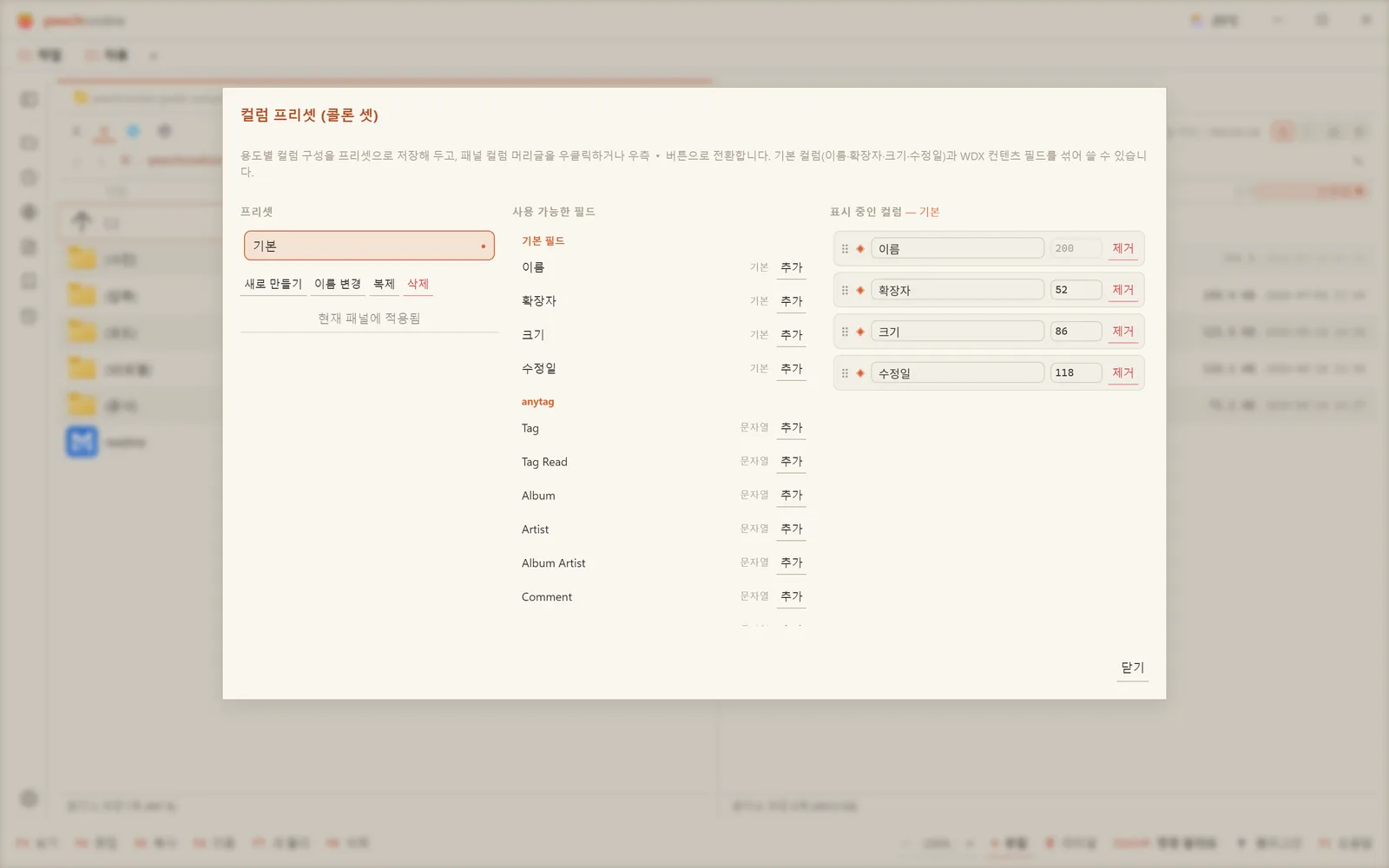
WDX columns
You can put image resolution, media duration, or EXIF capture date into the details view as columns.
Add fields in the Configure columns UI and drag to reorder. Save the combinations you use as presets and swap them per folder.
In a photo folder, resolution and capture date as sortable columns is a filing system on its own.
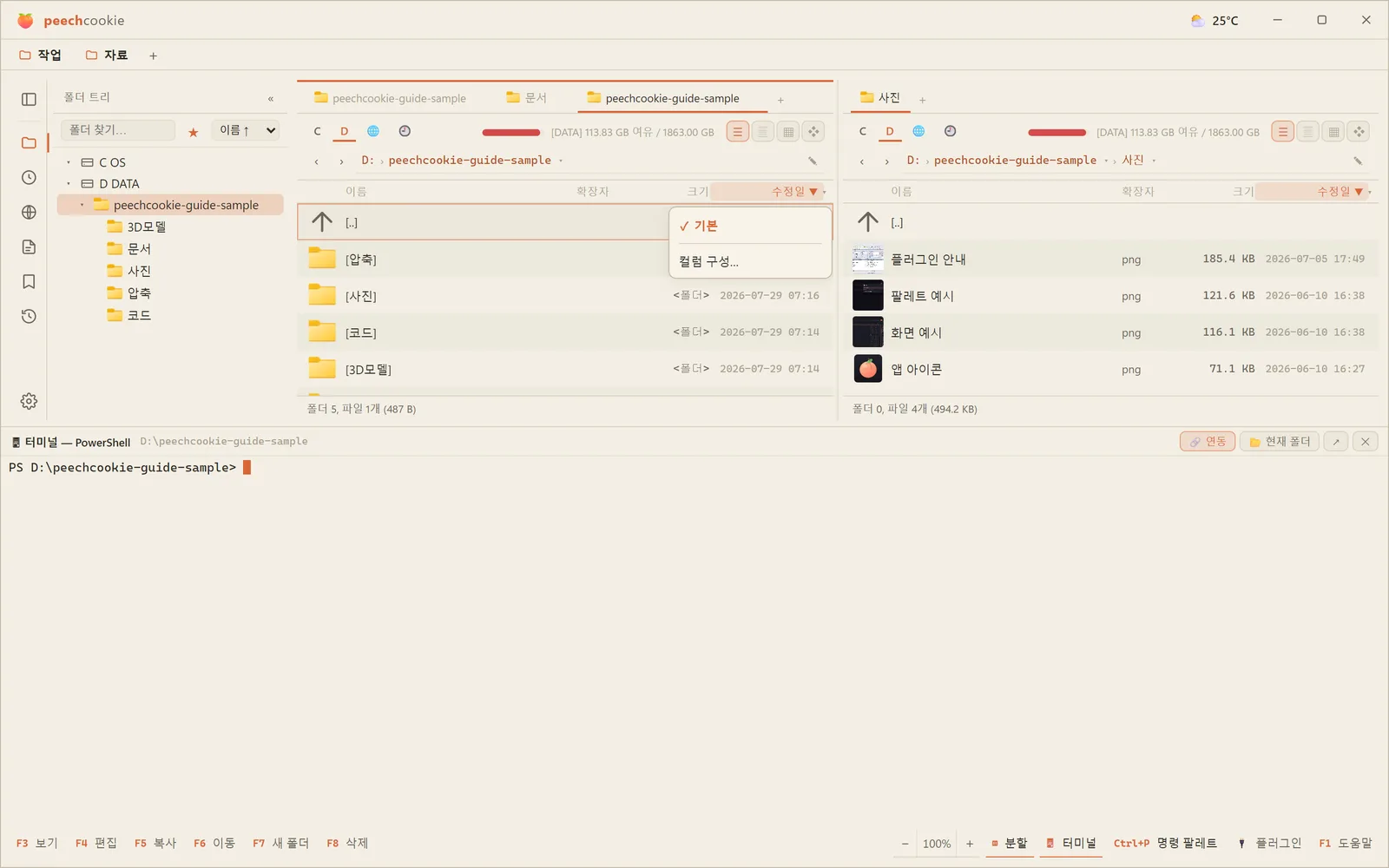
There’s a real terminal underneath.
Ctrl+` opens a ConPTY terminal below the panels.
Not an emulation — an actual shell. It follows the active panel’s folder, and the session survives being collapsed.
Pick the shell in Settings ▸ Integration ▸ Terminal: PowerShell, cmd, or Windows Terminal.
The command line
Turn on Settings ▸ Navigation ▸ Show command line
and you get a Total Commander-style single-line input under the panels.
- Type a path and it navigates (
cd pathis understood too). - Anything else runs as a command in the current folder, in a console window.
↑and↓walk your input history.
Which panel it targets is set by Command line target panel and
Use active panel for command line paths in Settings ▸ Navigation.
Postscript. You don’t have to throw anything out.
If you’ve used Total Commander for years, you have a plugin folder somewhere.
Use it. Just the 64-bit ones.