01
Getting started
Reading the first screen, moving around, and selecting files.
From first launch to having files selected.
Five minutes to read. About a day to get into your hands.
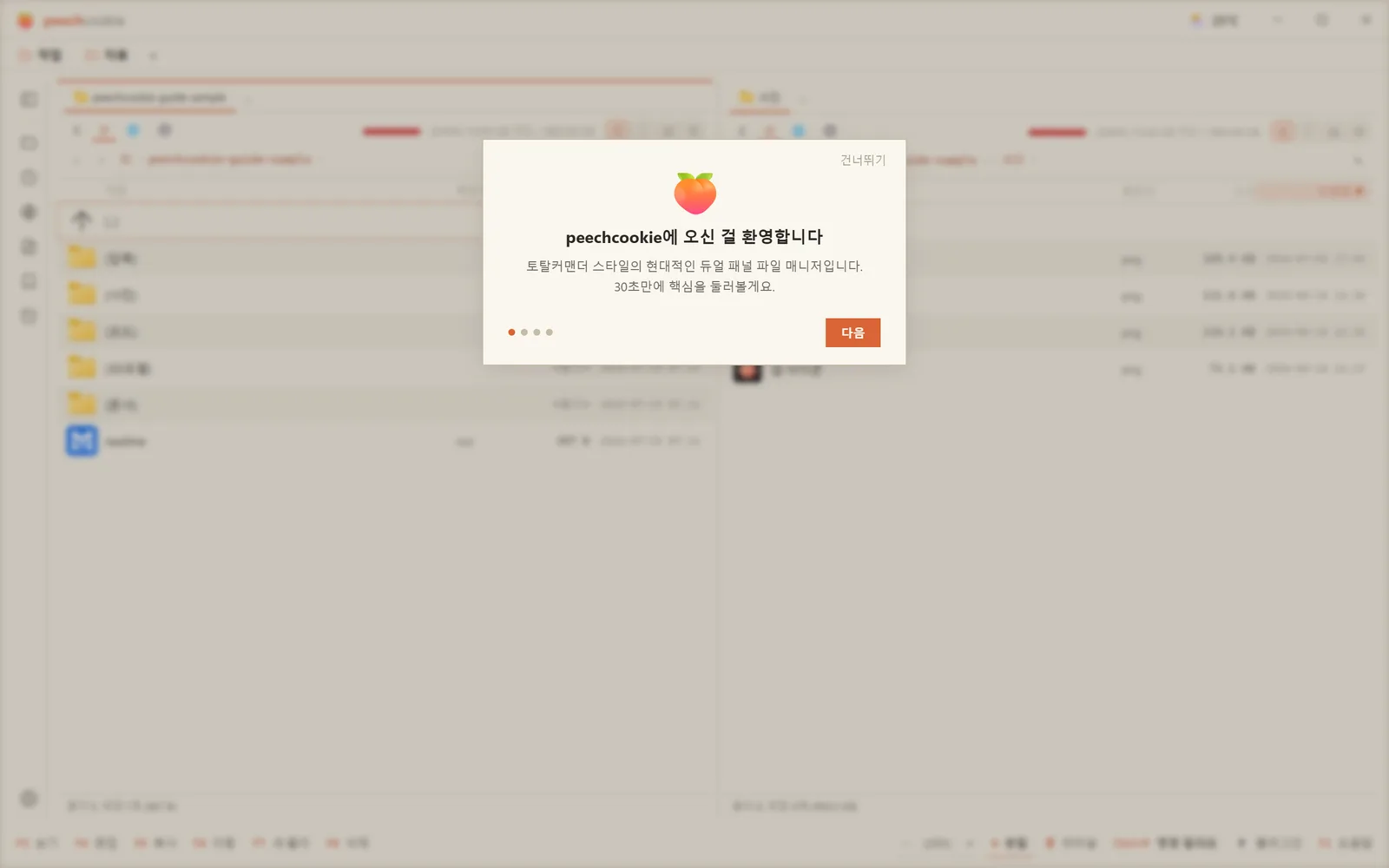
A 30-second tour opens on first run.
It walks you through the panels, the palette, and plugins.
Skip it if you like. To see it again: Ctrl+P → Tour.
The language follows your system.
Korean environment, Korean UI; anything else, English.
Change it in Settings ▸ General ▸ Language — the app reloads once to apply it.
If the plugin list is empty you’ll see a setup notice. It isn’t urgent. (Chapter 4)
⚠️ peechcookie is a single-instance app. Launch it again while it’s running and you don’t get a second window — the existing window wakes up and handles the request.
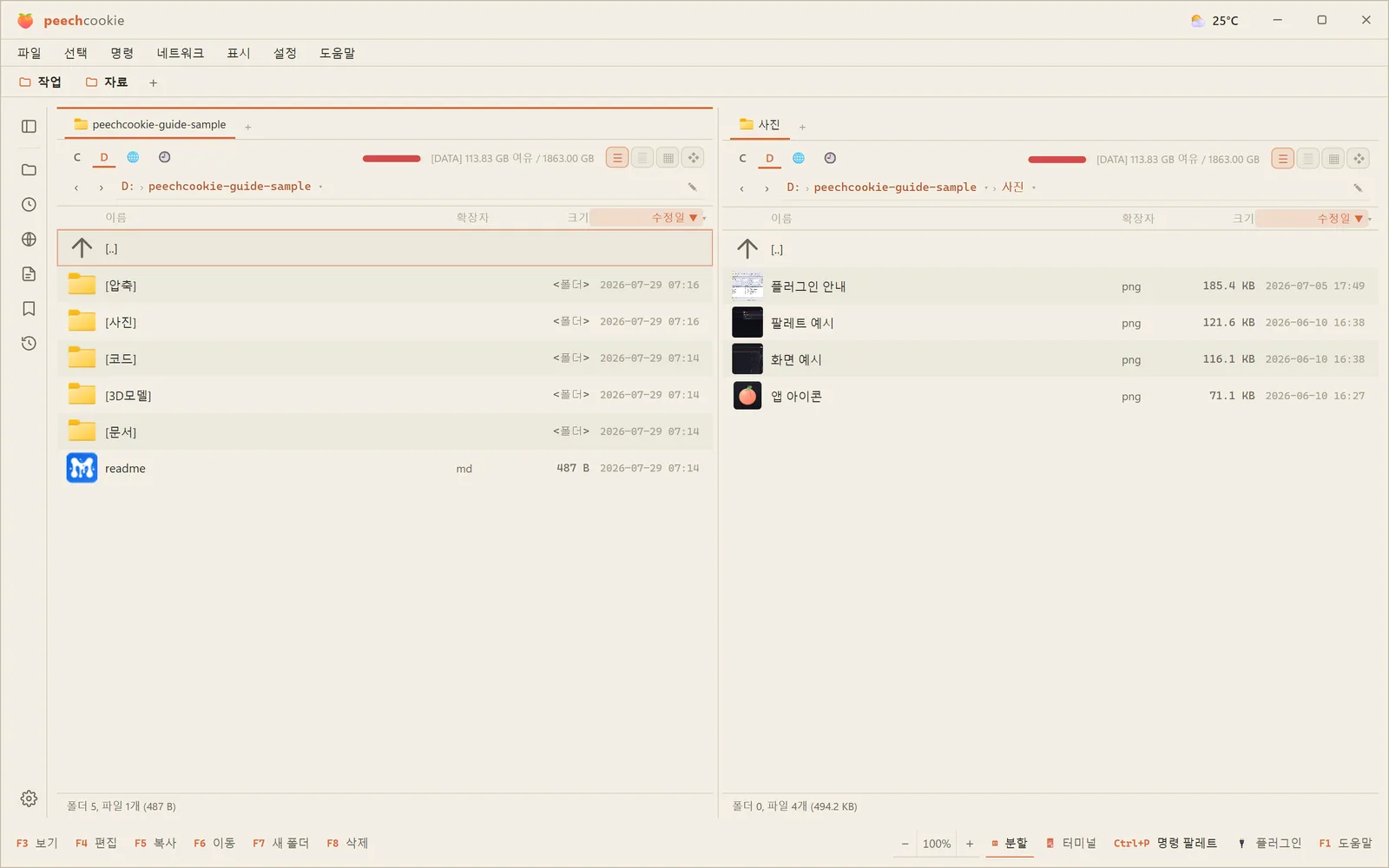
The screen has five layers.
From the top down.
Title bar — window controls, plus an optional weather chip.
Bookmark bar — grouped favorites. Off by default. (Chapter 5)
Two panels — most of the screen. Each panel is itself three strips: a drive bar on top, a breadcrumb path bar under it, then the file list, with that panel’s tabs along the bottom.
Terminal panel — collapsed normally. Ctrl+` opens it. (Chapter 4)
Bottom bar — progress chips for running operations, the F1–F8 buttons,
the 🔌 plugin button, and the UI zoom control.
Down the left edge runs the sidebar icon rail. Ctrl+F8 toggles it. (Chapter 3)
The active panel is the reference point
Only one panel is active at a time. You can tell by the border and the cursor.
Copy, move, and archive all run active panel → other panel.
Tab switches.
If an operation landed somewhere unexpected, the active panel was almost certainly the other one.
The drive bar and the path bar
The drive bar lists your drives with a usage meter on each. When free space runs low, the meter turns to a warning color.
The 🕘 button opens recently visited folders directly.
The path bar does three things.
Click a segment to jump to that parent,
press ▾ to hop to a sibling folder,
press ✎ to type a path yourself.

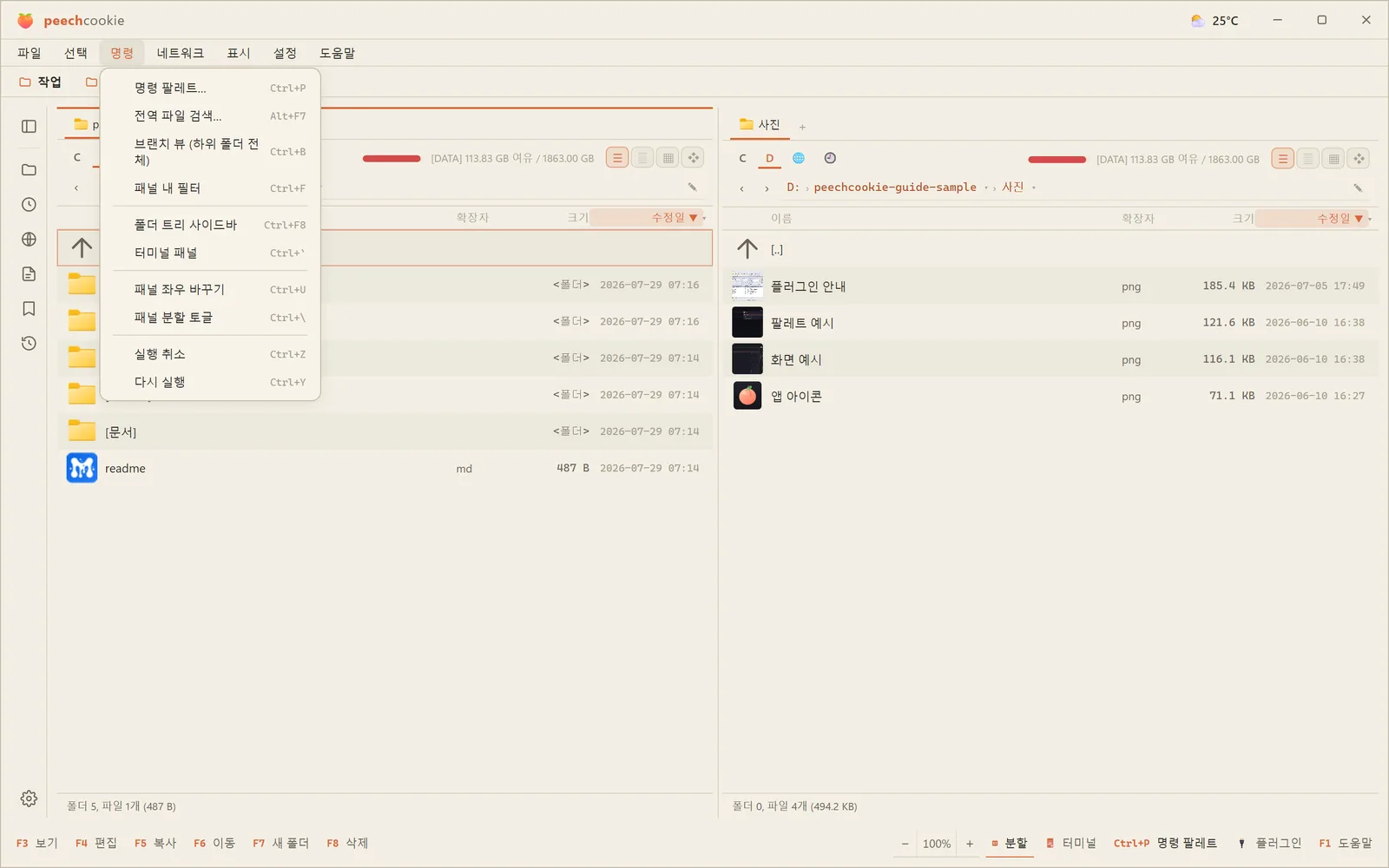
The menu bar is there if you want it
You can put Total Commander-style File · Select · Commands · Network · Show · Settings · Help dropdowns under the title bar.
It’s off by default. Turn it on in Settings ▸ Navigation ▸ Top menu bar.
It’s how you find a feature with your eyes while the shortcuts are still new.
Getting around.
| Action | How |
|---|---|
| Open folder or file | Enter or double-click |
| Parent folder | Backspace or .. in the path bar |
| Back / forward | Alt+← / Alt+→ |
| Switch panels | Tab |
| Refresh | Ctrl+R (auto-refresh is on by default) |
| Toggle hidden files | Ctrl+H |
| Change drive | Click the drive bar, or Ctrl+P |
| Recent folders | 🕘 in the drive bar |
| Jump anywhere | Ctrl+P → folder name |
| Everything below, as one list | Ctrl+B (branch view) |
Ctrl+P sorts favorites and recent folders by how often you use them.
The folders you live in float to the top.
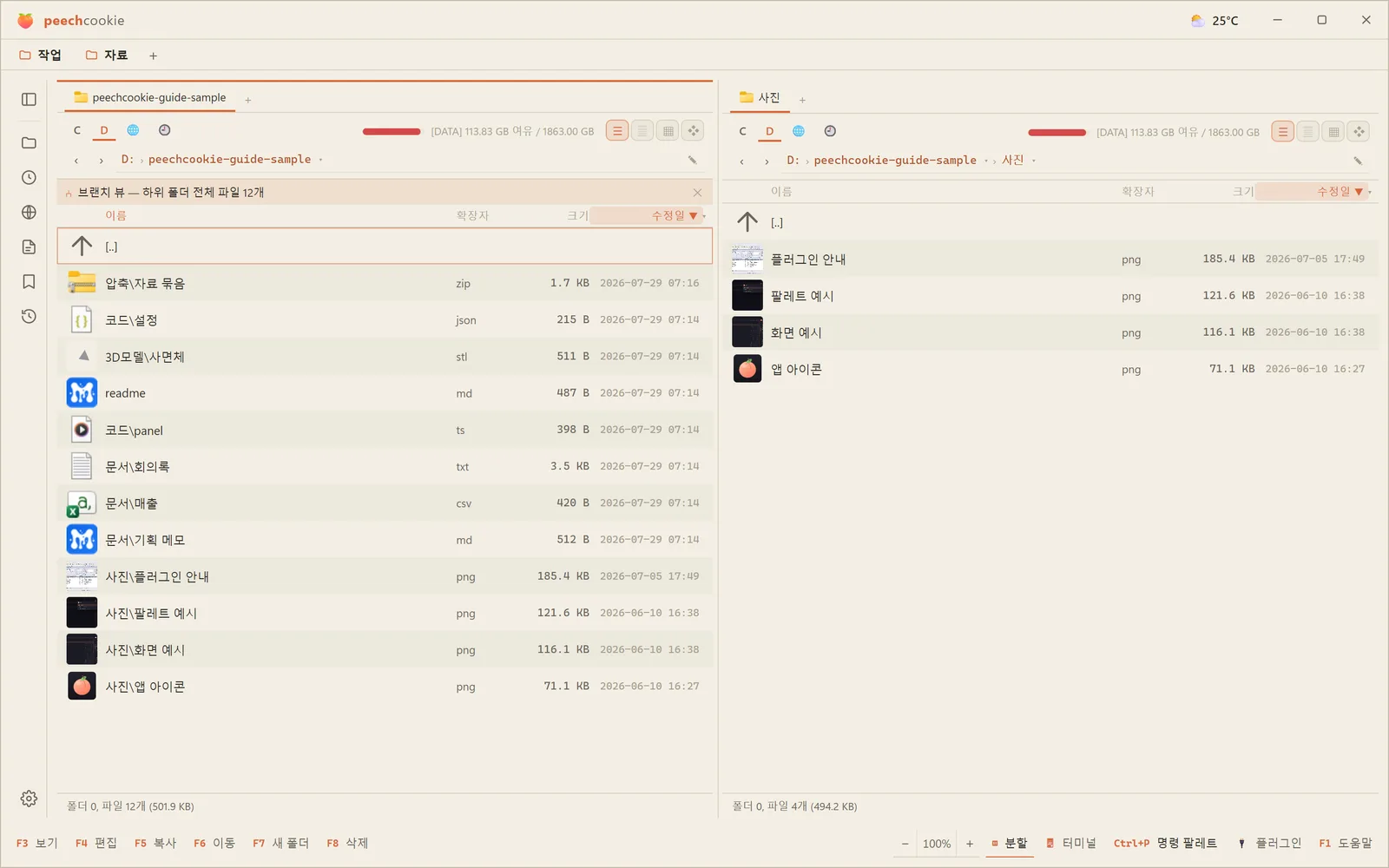
Flatten every subfolder into one list (Ctrl+B)
Branch view spreads the current folder and every folder under it into one flat list.
Names show as paths relative to the root, and a bar above the panel gives you the file count and a ✕ to close.
With nothing selected, Esc or [..] closes it too.
It’s for selecting files that are scattered across twenty folders in one pass.
⚠️ Plain folders only. It doesn’t work inside archives or virtual folders.
Just type and it jumps
With the panel focused, type a file name and the cursor jumps to it.
If you’d rather see only the matches, switch
Settings ▸ Behavior ▸ Quick find mode to filter list.
Sort order follows you around
Click a column header to sort.
⚠️ Sort order is remembered globally. Switch to sort-by-date here and other folders open sorted by date too.
It knows what kind of folder you’re in
In a Git repository you get a branch chip and change-status badges.
In OneDrive and Google Drive folders you get ☁ / ✓ sync badges.
Both can be turned off in Settings ▸ Behavior.
Selecting.
| Action | How |
|---|---|
| Toggle selection | Space or Insert |
| Range | Shift+↑/↓ or Shift+click |
| Add one | Ctrl+click |
| Select all | Ctrl+A |
| Wildcard select | Num+ → pattern (e.g. *.jpg) |
| Wildcard deselect | Num− |
| Clear selection | Esc |
Selecting a folder with Space also calculates its size.
That’s how you find out which folder is eating the disk.
Once something is selected, the next copy, move, or delete applies to the whole set.
Postscript. That was the setup.
You’ve read the screen, moved around, and selected files.
From the next chapter on, you do something with them.