02
Working with files
Copy, move, delete, tabs and panels, and ZIP.
This is the chapter where files actually move.
One thing to remember: the destination is the other panel.
There are ten operations.
| Operation | Key | Notes |
|---|---|---|
| Copy | F5 | To the other panel (inside an archive, extract) |
| Move | F6 | To the other panel |
| New folder | F7 | |
| New file | Shift+F4 | Opens in the editor the moment it’s made |
| Delete to recycle bin | F8 / Del | Recoverable |
| Delete permanently | Shift+F8 / Shift+Del | Always asks first |
| Rename | F2 | Inline |
| Batch rename | Ctrl+M | Many files by pattern |
| Copy / cut / paste | Ctrl+C / Ctrl+X / Ctrl+V | Works with Explorer |
| Copy path | Ctrl+Shift+C | Full path to the clipboard |
| Undo / redo | Ctrl+Z / Ctrl+Y |
Ctrl+C and Ctrl+V share the clipboard with Windows Explorer.
Copy in Explorer, paste in peechcookie, or the other way around.
If the clipboard holds an image or text rather than files,
Ctrl+V saves that to the current folder as a file.
It’s how a screenshot lands straight in the folder you want it in.
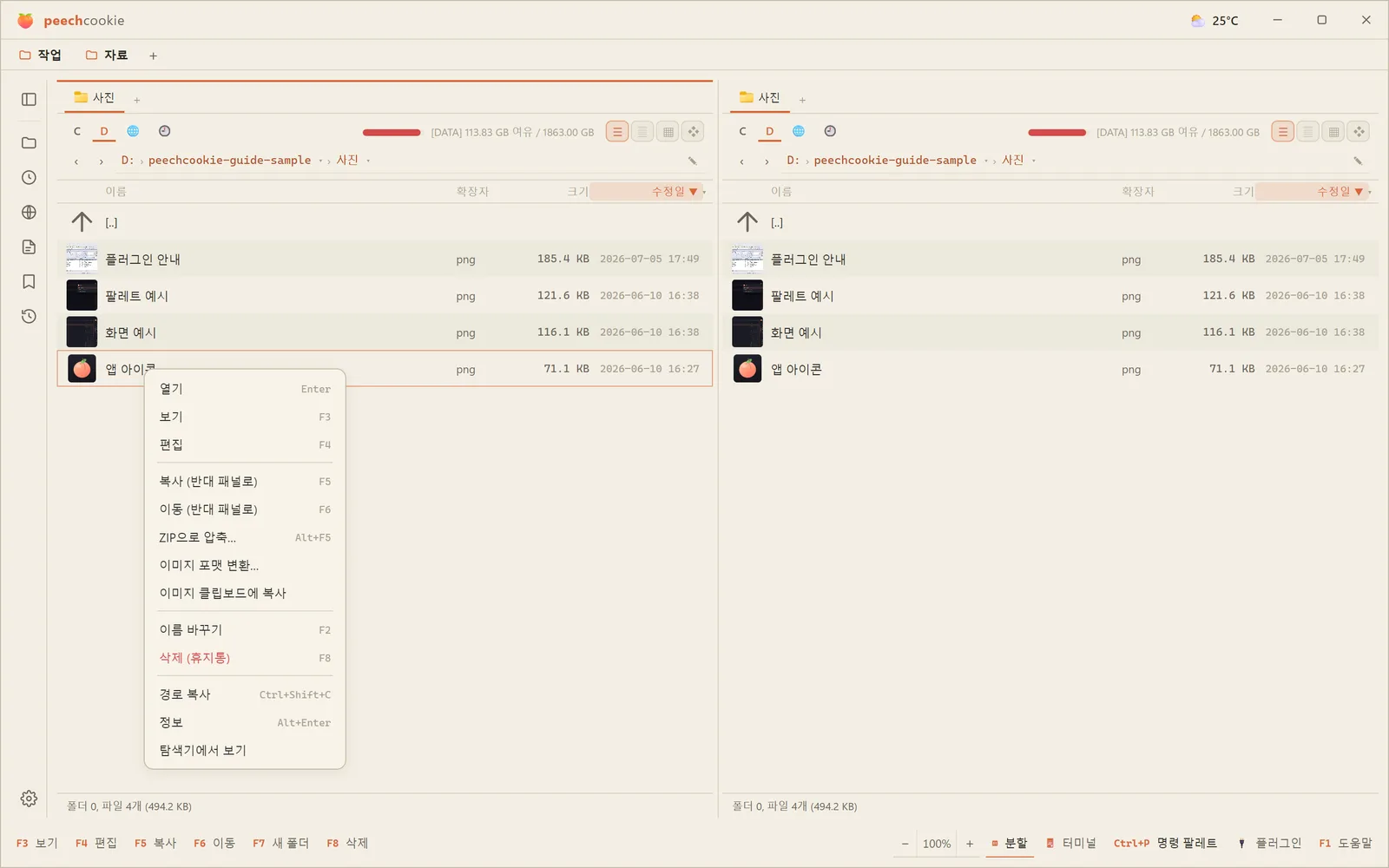
The right-click menu is the app’s own
Right-click a file, a folder, or empty space and you get open · view · edit · copy · move · compress · rename · delete · copy path · properties · show in Explorer.
When you want the Windows shell menu, that’s Ctrl+right-click —
and Ctrl+Shift+right-click for the extended one.
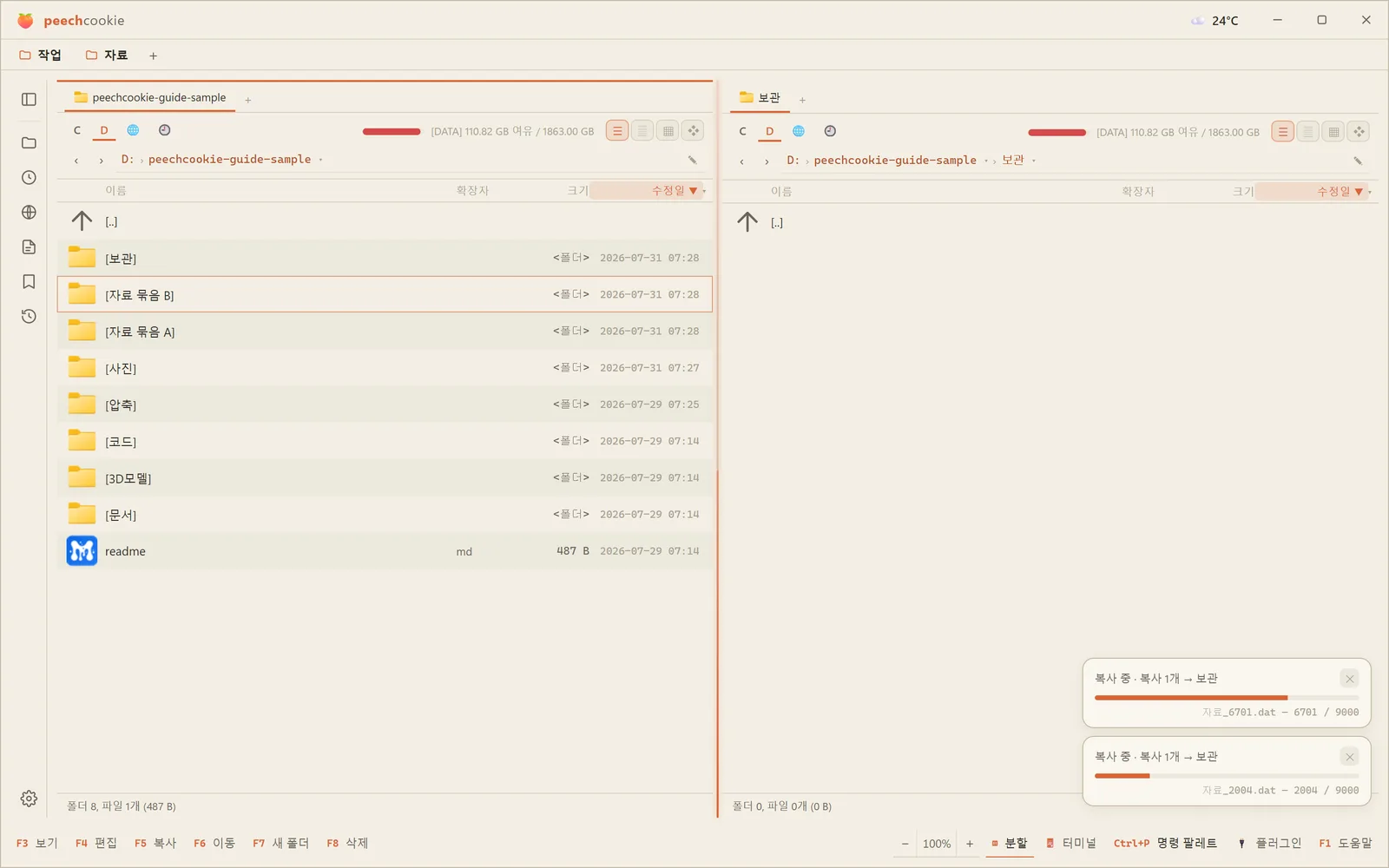
You can keep working while it copies.
Copies and moves drop into progress chips on the bottom bar.
Nothing locks up. You can keep browsing during a large move, and queue another operation on top of it.
Click the chip to cancel.
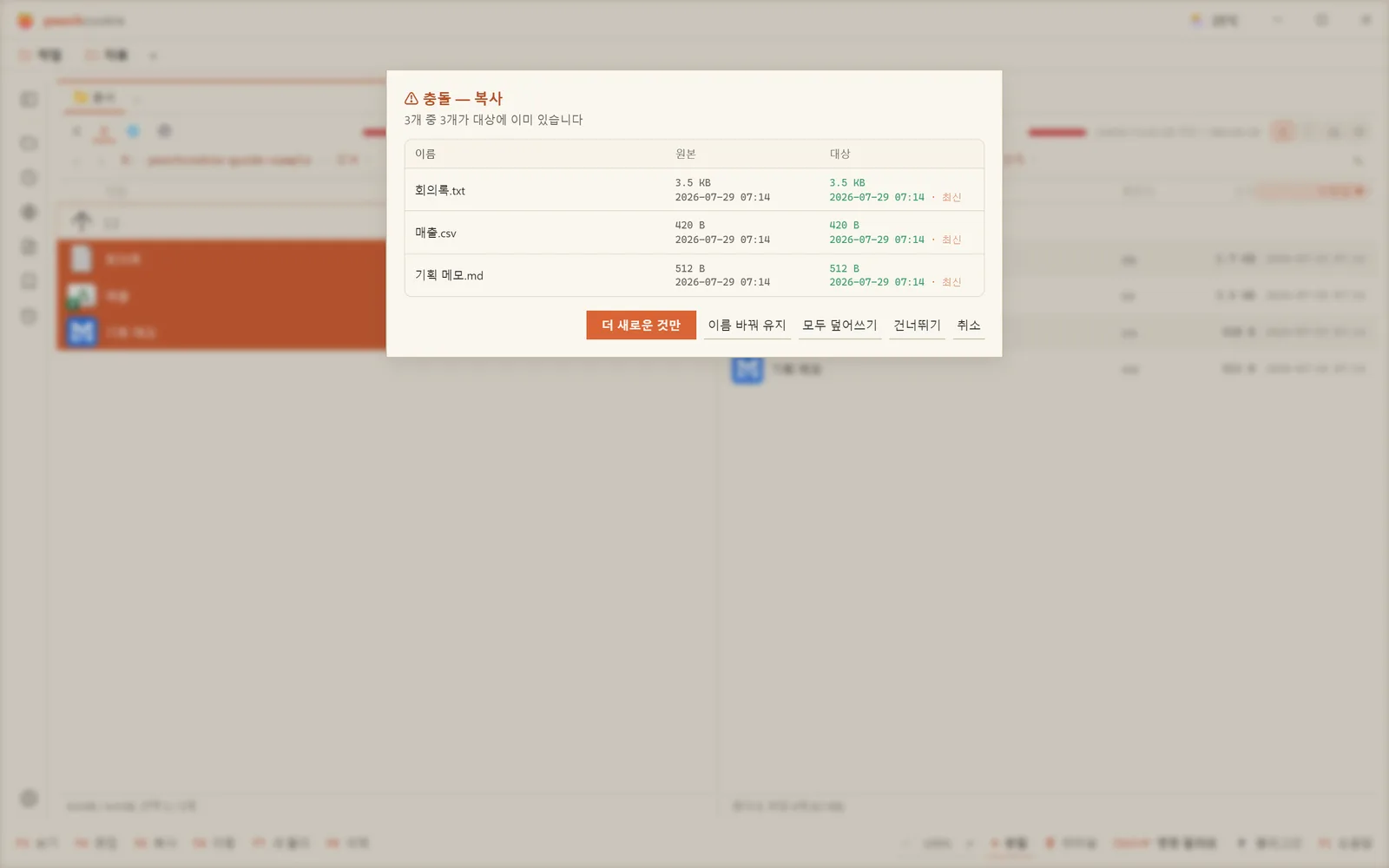
If the name already exists, it asks
A conflict sheet appears.
Overwrite · skip · rename · newer only.
‘Newer only’ is what you use to refresh a backup folder.
Undo comes in two forms
Ctrl+Z reverses what you just did —
copy, move, rename, and recycle-bin delete.
The operation log in the sidebar keeps this session item by item. You can pick one operation out of order and undo or redo just that one.
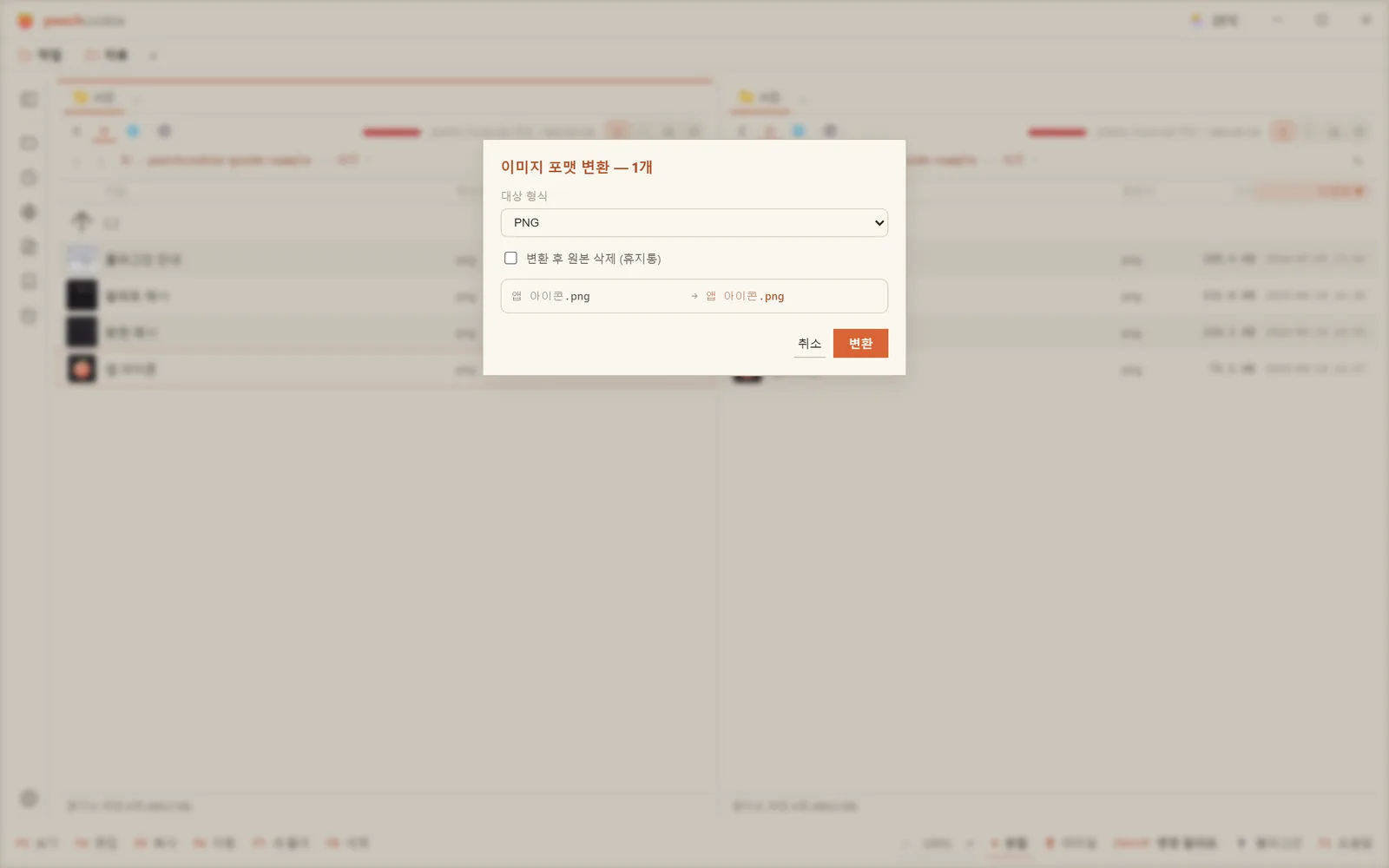
Image formats convert in place.
Right-click an image ▸ Convert image format…
PNG, JPG, WEBP, GIF, BMP, ICO. ICO lets you pick several sizes to pack in (16–256px); JPG gets a quality slider. Both have a delete the original afterwards (to recycle bin) option.
You can queue a whole batch, and progress shows on the taskbar.
That’s one more errand that doesn’t need an image editor.
Dragging works three ways.
Panel to panel — drop on the other panel and it asks whether to copy or move.
Explorer to here — drag files in from Windows Explorer or another app.
Out of the window — drag outside and it becomes a native drag to other apps. Attaching to mail or uploading in a browser works the way you’d expect.
⚠️ In-app dragging is pointer-based.
If it won’t grab, use Alt+drag — that switches to an external drag immediately, even inside the window.
Access denied is one button away.
When an operation in a protected folder like Program Files or Windows fails with access denied,
a “Retry as administrator” button appears.
Press it and the same operation runs again, elevated. Copy, move, delete, new folder, and rename all support it.
You don’t have to quit and relaunch the app as administrator.
Tabs belong to a panel.
Ctrl+Tnew tab ·Ctrl+Wclose ·Ctrl+Tabnext tab- Middle-click a folder to open it in a new tab.
Ctrl+←/Ctrl+→— open the folder under the cursor as a new tab in the left / right panel.- Drag tabs to reorder them or throw them to the other panel.

Locked tabs
A locked tab defends its folder. Try to navigate away and the tab stays put — a new tab branches off instead.
It’s how you pin a working folder.
In Settings ▸ Navigation you can shrink locked tabs to icons only.
Session restore
Quit and relaunch and your tabs come back.
Settings ▸ Navigation ▸ Restore tabs on start gives you
all / locked only (default) / from scratch.
The panels themselves
Ctrl+\— toggle between dual and single panel.Ctrl+U— swap the two panels wholesale.
Ctrl+U is for when you need to copy in the opposite direction. It beats navigating back to the destination.
ZIP works without a plugin.
Browse — press Enter on a zip. You walk into it like a folder.
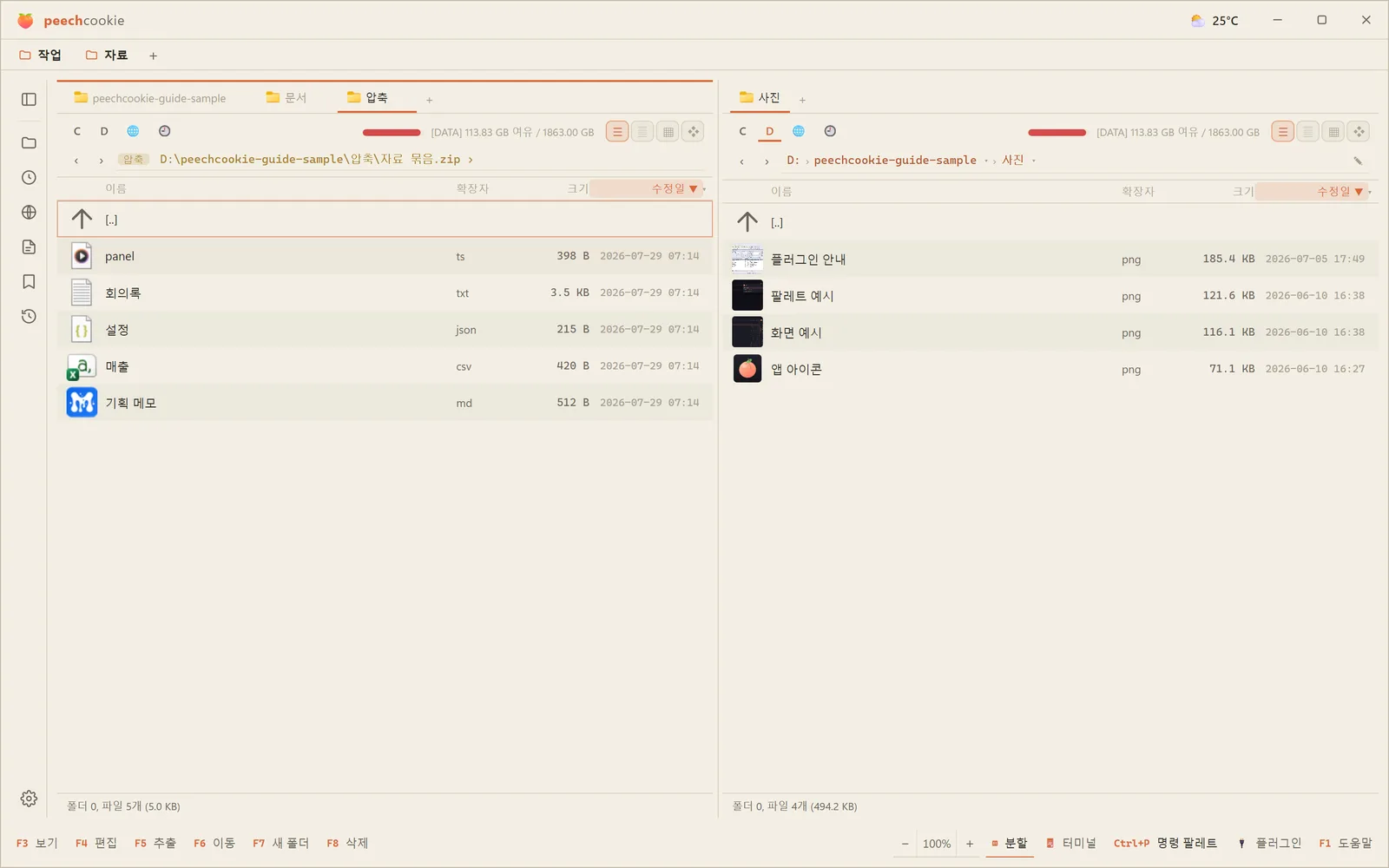
Extract — F5 inside an archive. Only what you selected comes out, into the other panel.
Unpack whole — right-click the archive ▸ Extract… (or Alt+F9).
Unpacks without opening it. It asks for a destination, defaulting to a folder
named after the archive under the other panel.
Select several and each gets its own named folder.
Create — select files and press Alt+F5.
Add and remove inside — with an archive open, you can add files to it or delete from it. Dropping files onto an archive puts them in too — including files dragged from Explorer.
All of it runs through progress chips, and all of it can be cancelled.
Other formats like 7z and rar are handled by WCX plugins. (Chapter 4)
Postscript. The sequence your hands learn.
Tab to bring the destination into the other panel, Space to select, F5.
Those three are most of the day.