03
Looking and finding
Preview and viewer, search, and the sidebar.
Ways to check a file without opening it.
And ways to find where that file went.
The preview follows your cursor.
Ctrl+Q attaches a preview pane.
Move the cursor up and down and it redraws as you go. Images, text, and media, of course — and put the cursor on a folder and you get a chart of what’s in it.
Picking keepers out of 200 photos is this, plus Space, all the way down.
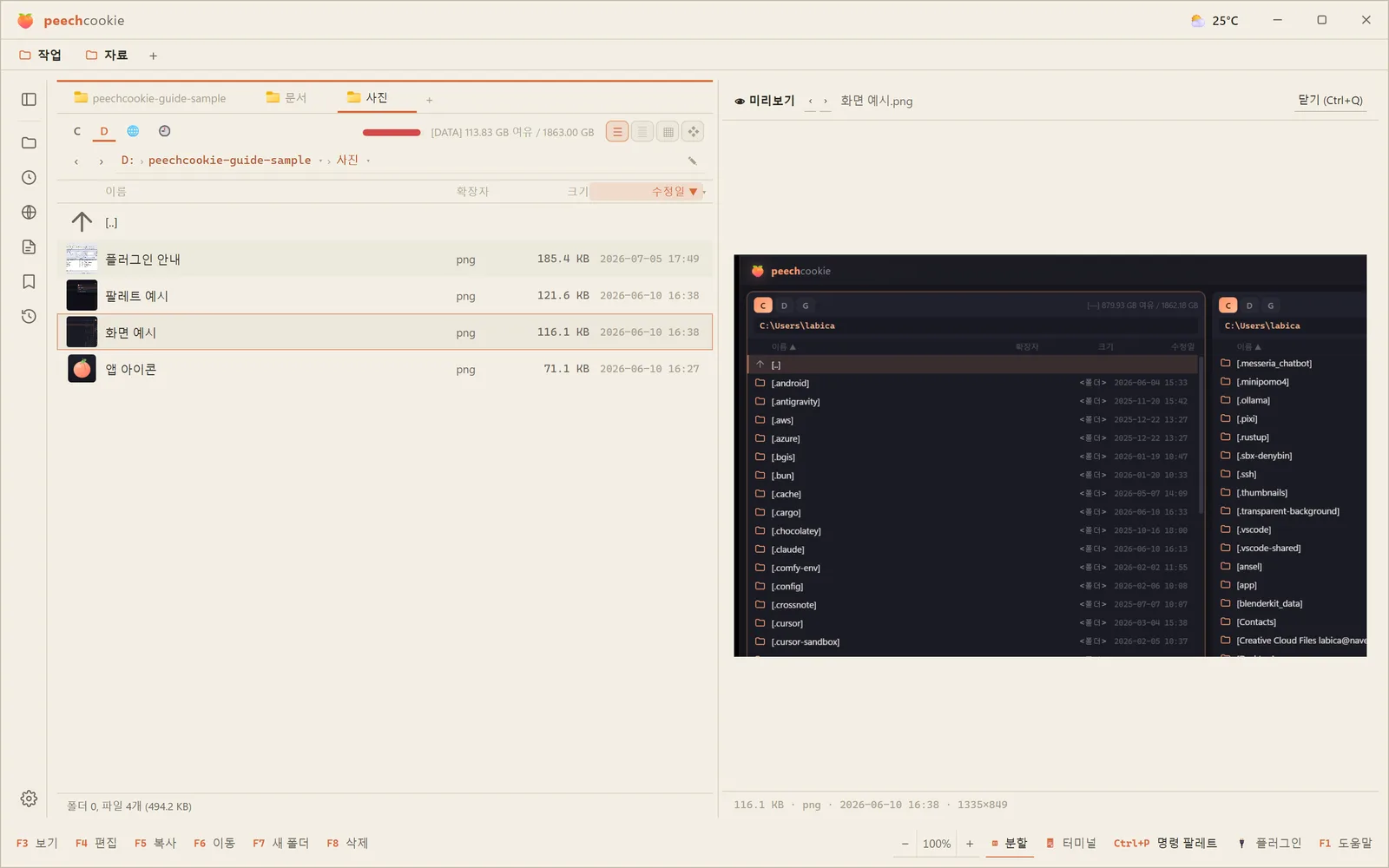
It isn’t only files that get drawn.
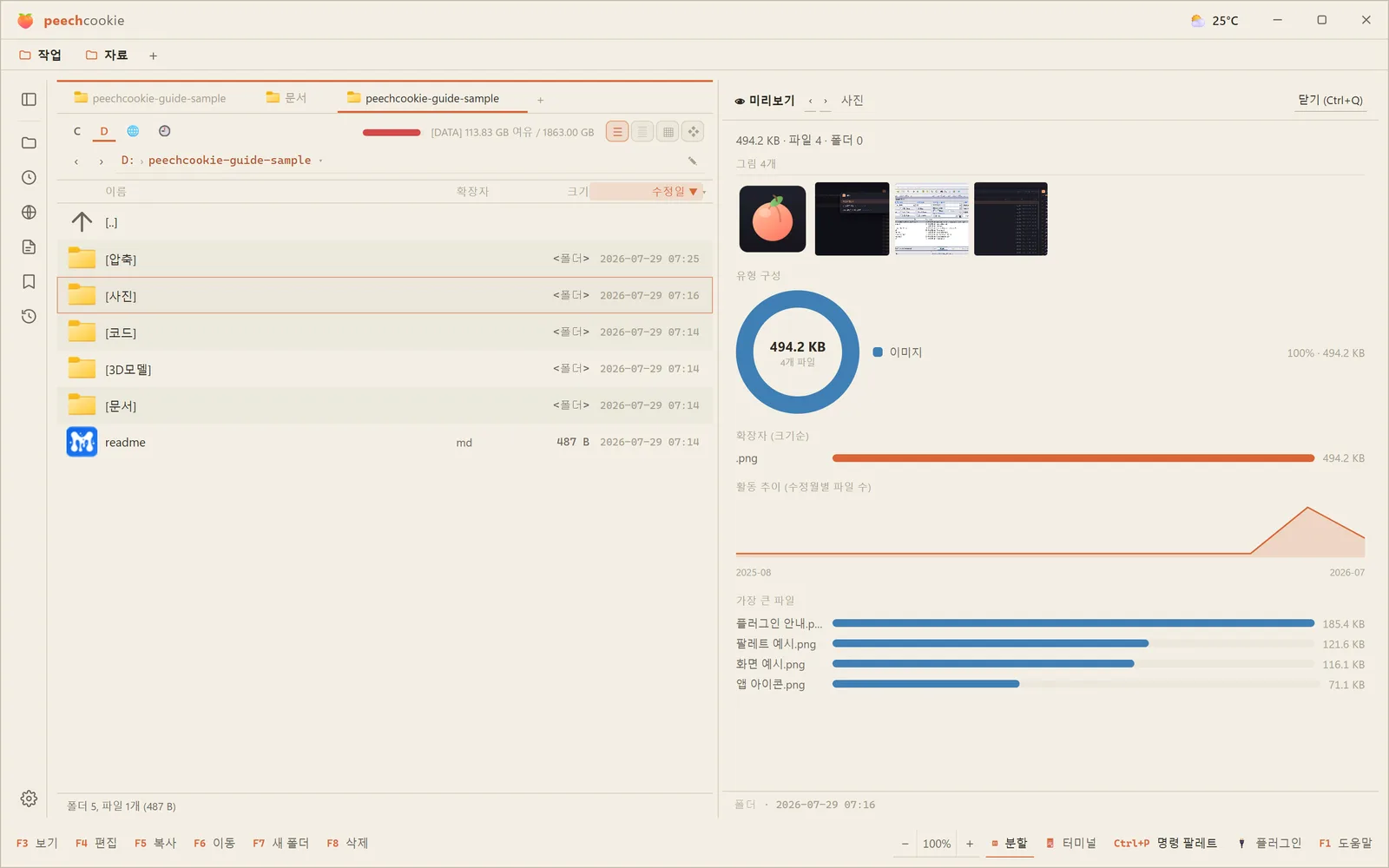
Point at a folder and the header shows the opening of its readme (index.md, readme.md, and so on),
the names of the folders directly under it, and thumbnails of images, video, and 3D — with a composition chart below.
Archives get the same treatment without being unpacked: top-level names, a composition chart, and the compression ratio.
Items inside an archive or on a remote (WFX) can be previewed too — extracted to a cache on the fly.
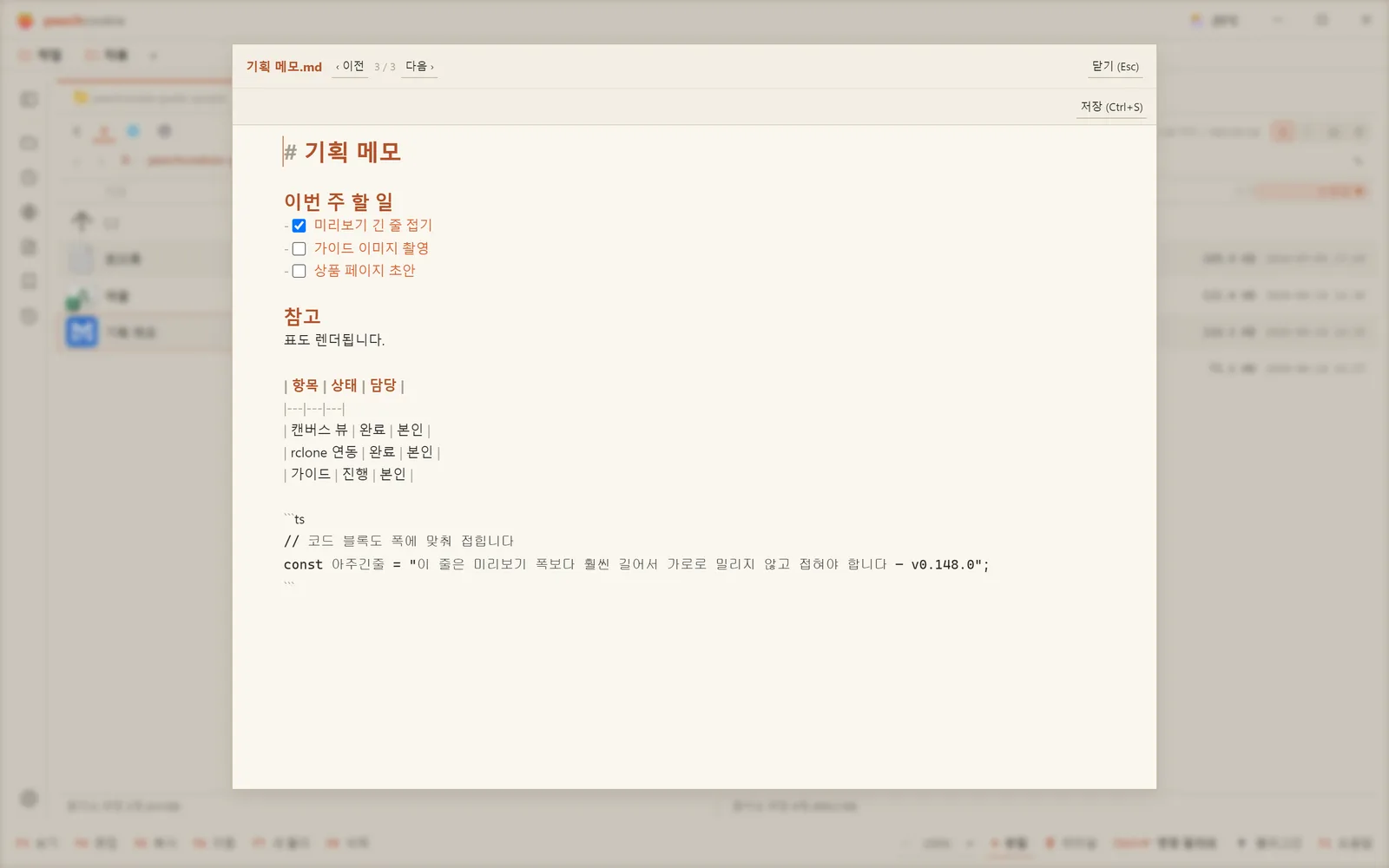
Markdown is editable in place. Press Edit in the header and it becomes a live-preview editor
that autosaves when you stop typing. Switch back to View and it re-renders what you changed.
⚠️ While you’re editing, Ctrl+Q won’t close it. Use the close button.
The ‹ › buttons move to the previous and next file — the cursor in the active panel moves with them.
Which extension opens which way is yours to set, in Settings ▸ Preview.
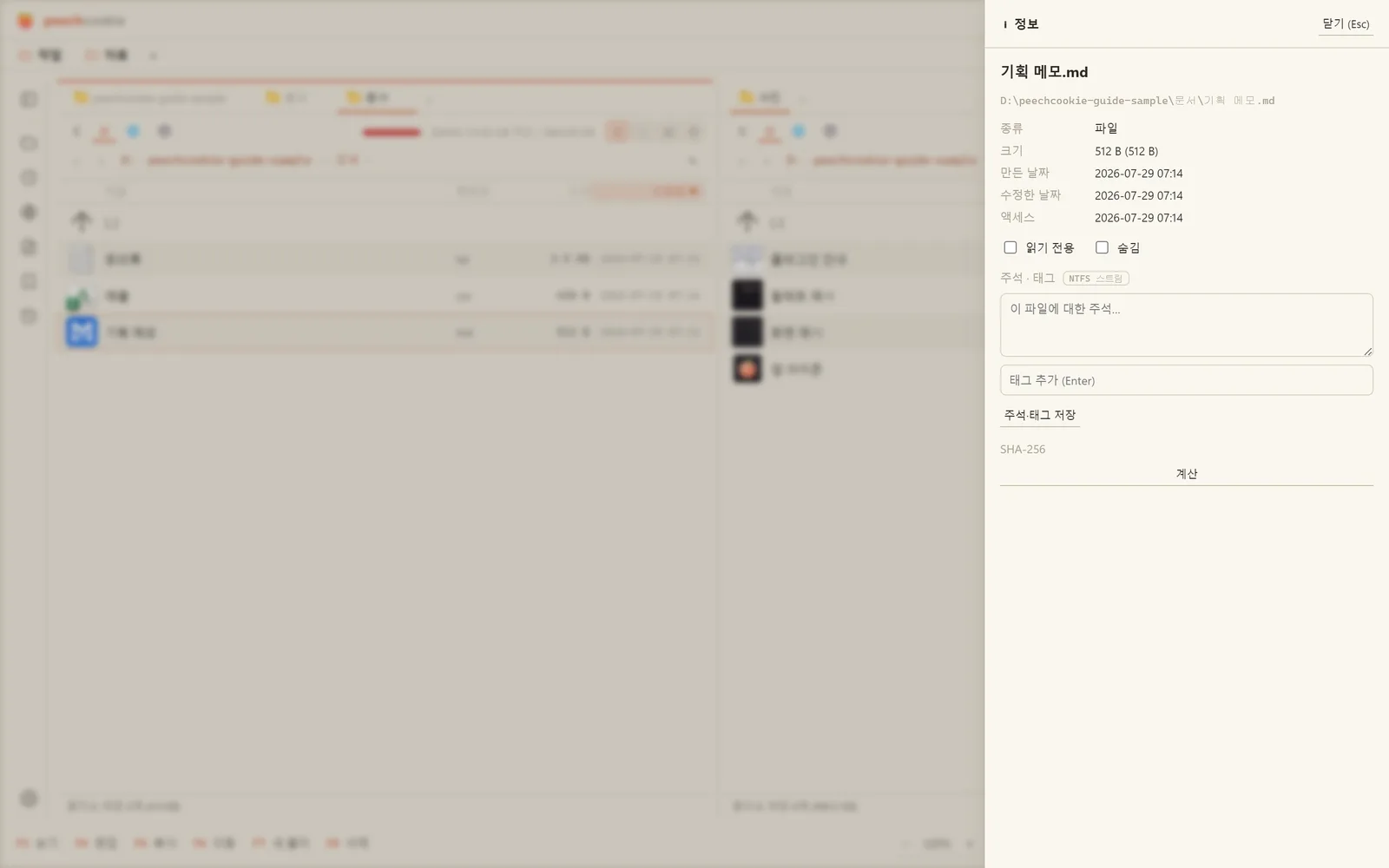
The info panel (Alt+Enter)
Properties of the selected item, plus its SHA-256 hash.
For a folder you get visualizations: a type donut, an extension bar chart, activity over the last 12 months, and the largest files.
“What is this 8GB folder” becomes a 30-second question.
It’s also where you attach comments and tags to a file. They live in an NTFS alternate data stream, so they travel with the file without touching its contents, size, or modified time.
⚠️ They don’t survive leaving NTFS — FAT/exFAT drives, ZIP files, email attachments.
The viewer opens almost anything. (F3)
If a WLX plugin can handle the format, it opens in the plugin viewer;
otherwise the built-in viewer takes it.
Shift+F3 ignores plugins and always uses the built-in one.
| Kind | Formats |
|---|---|
| Text and code | txt·log·ini (editable, Ctrl+S saves), syntax highlighting, hex mode, EUC-KR |
| Markdown | md (view + edit, Ctrl+S saves) |
| Images | png·jpg·gif·webp (zoom, rotate), svg (toggle source) |
| Media | mp3·mp4·avi playback, album art |
| Documents | PDF, Hangul hwp·hwpx (read-only, pages rendered as SVG) |
| Tables | csv·tsv (edit and save), Excel xlsx·xlsm·xls (read) |
| 3D | stl·obj·3mf·dae·3ds·fbx (solid, textured, wireframe — with progress and cancel) |
| Graphics | PSD psd·psb, PureRef pur (read-only, zoom and pan) |
| Fonts | ttf·otf specimens |
Search inside the viewer with Ctrl+F.
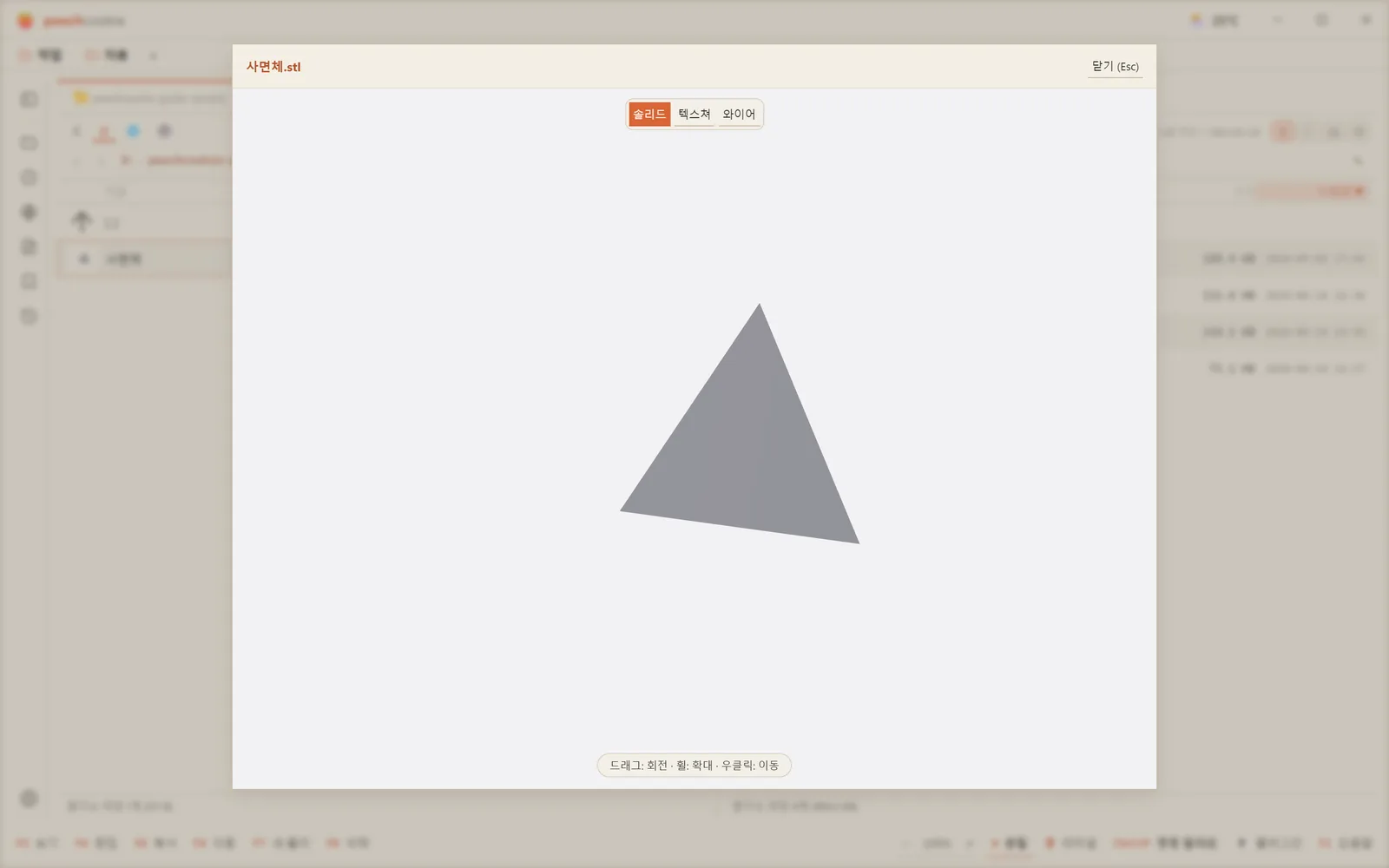
Settings ▸ Behavior has open F3 in a separate window, which lets you put several files side by side.
The same section has autoplay media in preview and loop media in preview.
Hangul documents and PSDs are read-only because this is a viewer. It means you don’t launch Hangul or Photoshop to check something — it doesn’t replace either.
There are four view modes.
Ctrl+1details — the list with columns. The default.Ctrl+2brief — names only, in multiple columns. For crowded folders.Ctrl+3thumbnails — for image folders.Ctrl+4canvas — free placement on an open plane. Its own section, just below.Ctrl+Shift+F1cycles through them.
View mode is remembered per folder, and each panel keeps its own. Set the photo folder to thumbnails and the working folder to details once, and that’s how they open from then on.
Thumbnail size adjusts on the spot with Ctrl+wheel, and that’s remembered per folder too.
The starting size is Settings ▸ Appearance ▸ Default thumbnail size.
Details and brief views can show small thumbnails in place of icons as well.
Thumbnails are cached on disk so a folder redraws instantly the next time. Clear the cache in Settings ▸ Appearance.
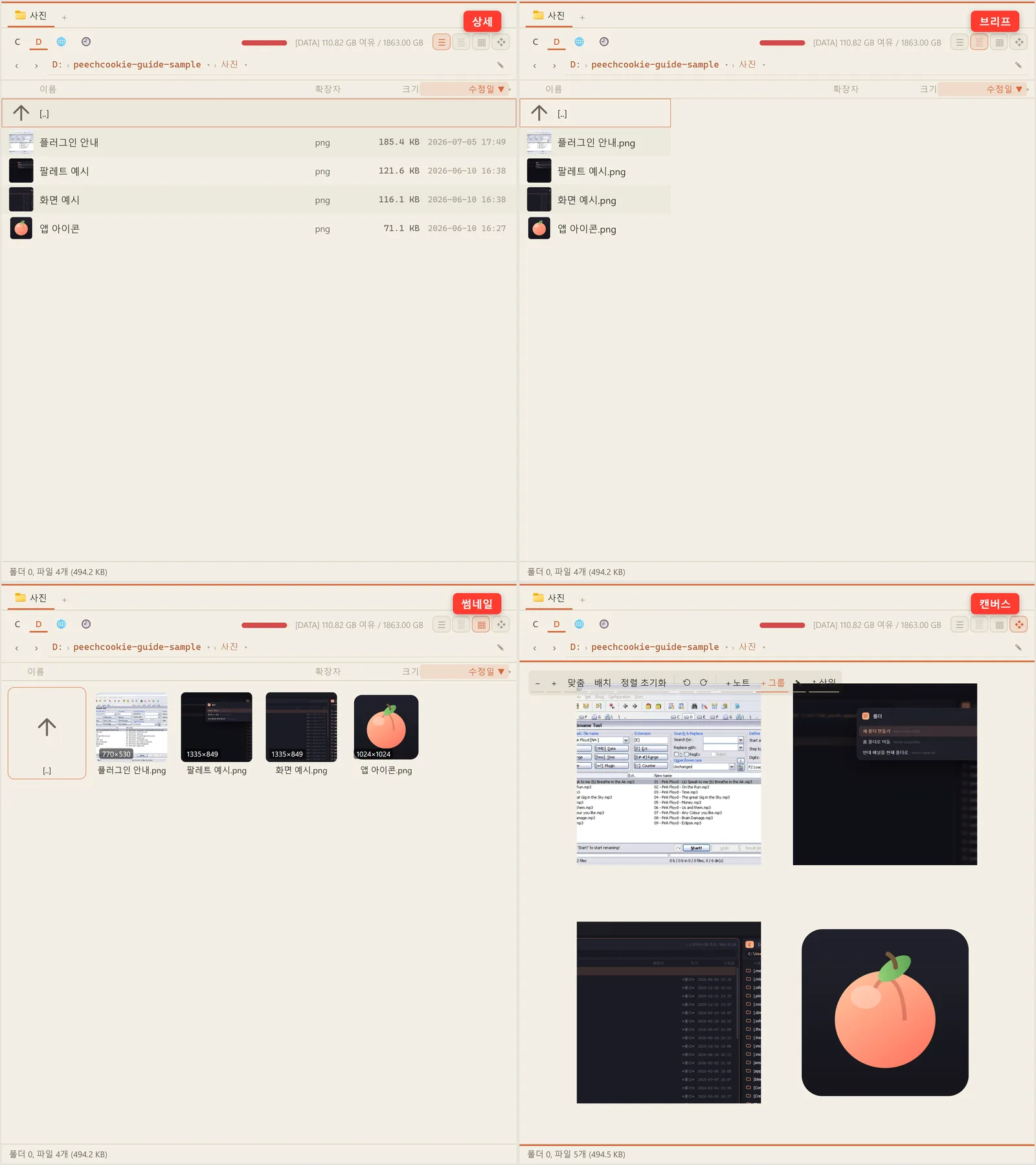
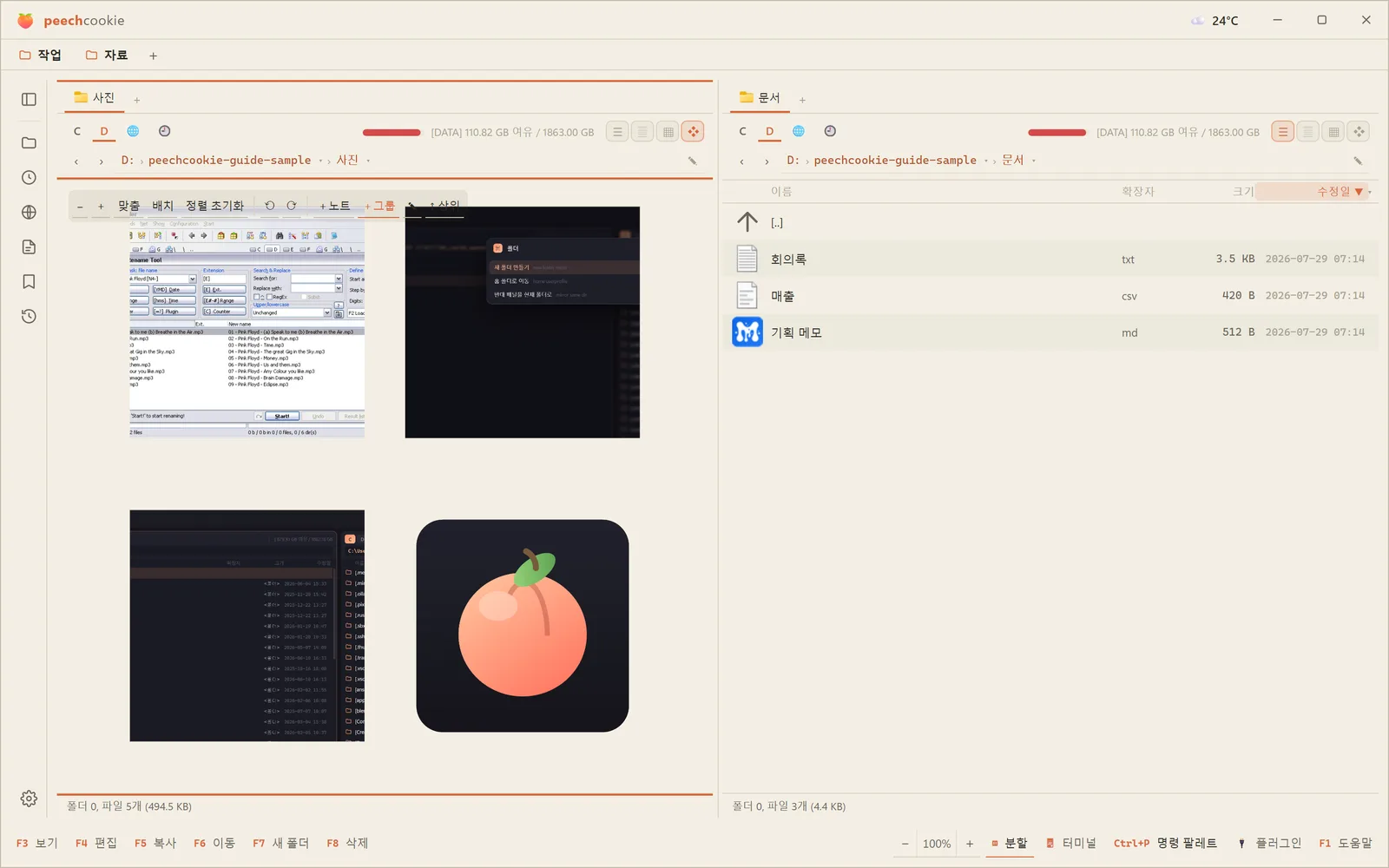
Canvas spreads the folder out (Ctrl+4)
It lays the files and folders on free coordinates, the way Obsidian or PureRef does.
It’s for spreading material out and sorting it with your eyes.
- Arrange and zoom — drag tiles, wheel to zoom, drag empty space to pan.
Select several at once, move them together, and
Ctrl+Zyour way back. - Groups, notes, edges — named background frames (groups), free text cards (notes), and edges joining cards (curved, straight, or orthogonal).
- Live tiles — a tile can toggle between a static thumbnail and the real thing (video, PDF, markdown, code).
- Expand a folder card — press
+on a folder card and its contents open as a mini canvas inside. What you arrange in there is saved as that folder’s own layout, and the two stay in sync. - Export — a PNG snapshot, an image of a selected region, or JSONCanvas (Obsidian).
Layouts live in a hidden .peechcookie.pcanvas file inside the folder,
so moving or syncing the folder takes the layout with it.
Open the same folder in two places and edits show up in both, live.
Card borders, corner rounding, snap spacing, and edge shape are in Settings ▸ Canvas view.
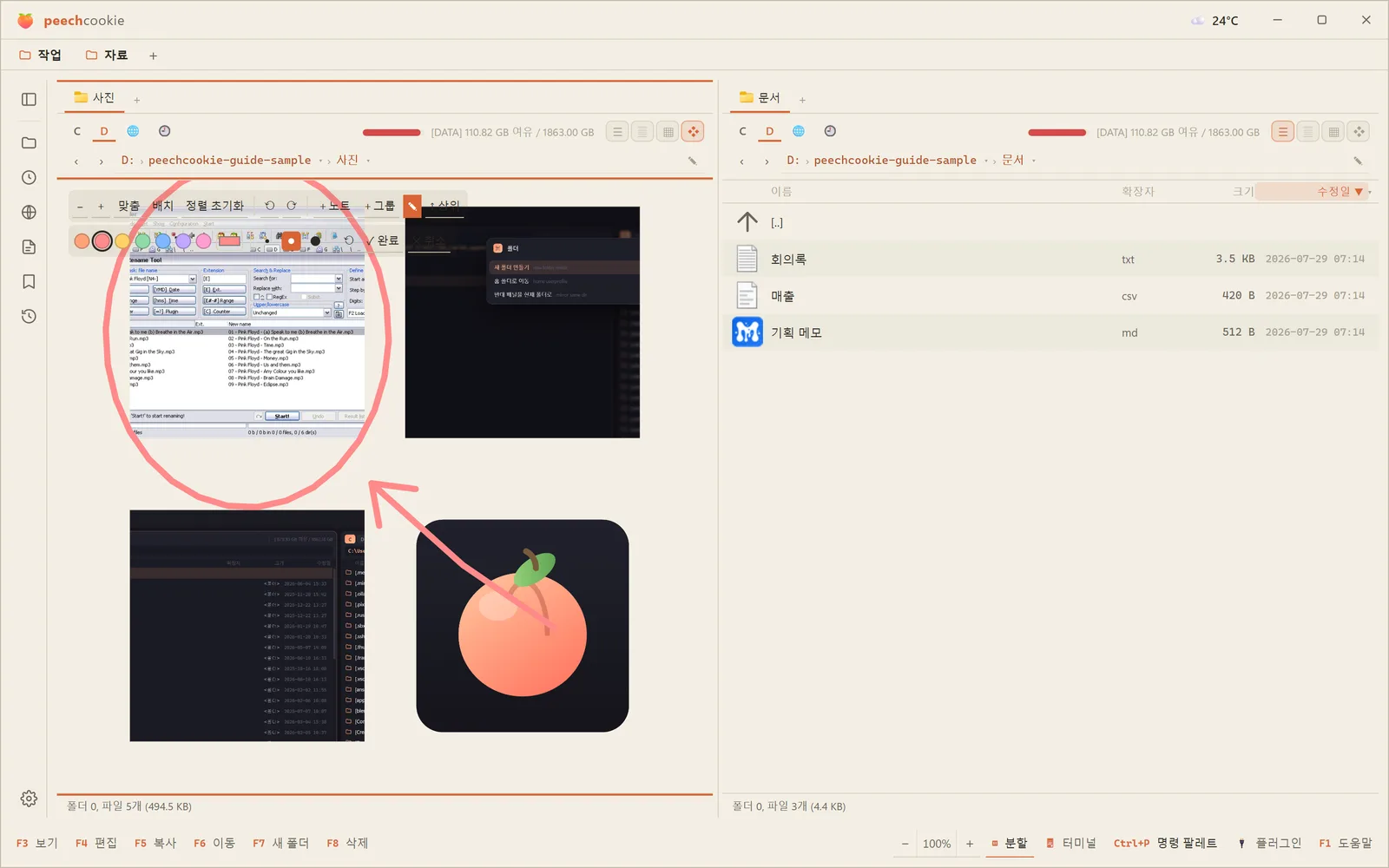
Drawing — turn on ✎ in the toolbar and you draw straight onto the canvas.
Stylus pressure feeds into stroke width, and when you finish, the strokes are saved as one object
you can move and resize. Esc or Enter ends it; Ctrl+Z while drawing takes back the last stroke only.
F4 is edit.
It opens the program set in Settings ▸ Integration ▸ Editor;
leave that empty and it uses your system association (or Notepad if there isn’t one).
Shift+F4 makes a new file and opens it in the editor right away.
There are four ways to search.
| Feature | Key | What it searches |
|---|---|---|
| Panel filter | Ctrl+F | Narrows the folder you’re looking at, live |
| Global file search | Alt+F7 | Names and contents. Results stream in as you type; Enter jumps to the location |
| Command palette | Ctrl+P | Fuzzy search over folders, commands, and drives |
| Recent items | Ctrl+J | Every recently used file and folder on the system, as one virtual folder |
Alt+F7 doesn’t wait and hand you a finished list — it streams matches as it finds them.
When the one you wanted shows up, press Enter there.
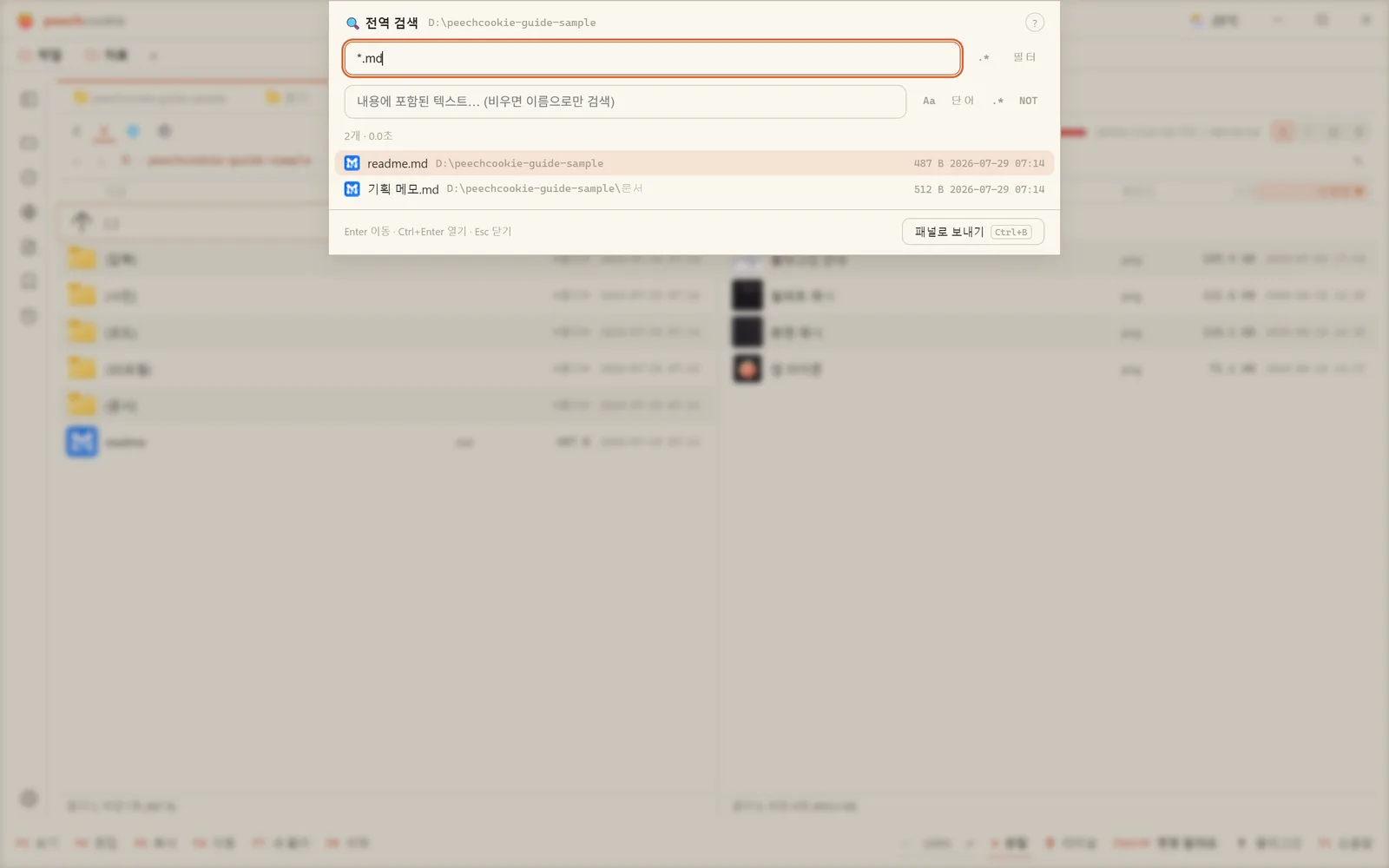
The search syntax is Total Commander-compatible.
Put several masks in the name field (*.jpg *.png), or list exclusions after a | (*.* | *.tmp).
Content search takes regular expressions and NOT, and detects encoding on its own.
Ctrl+B spreads the results into the panel as a flat list. From there it’s an ordinary listing.
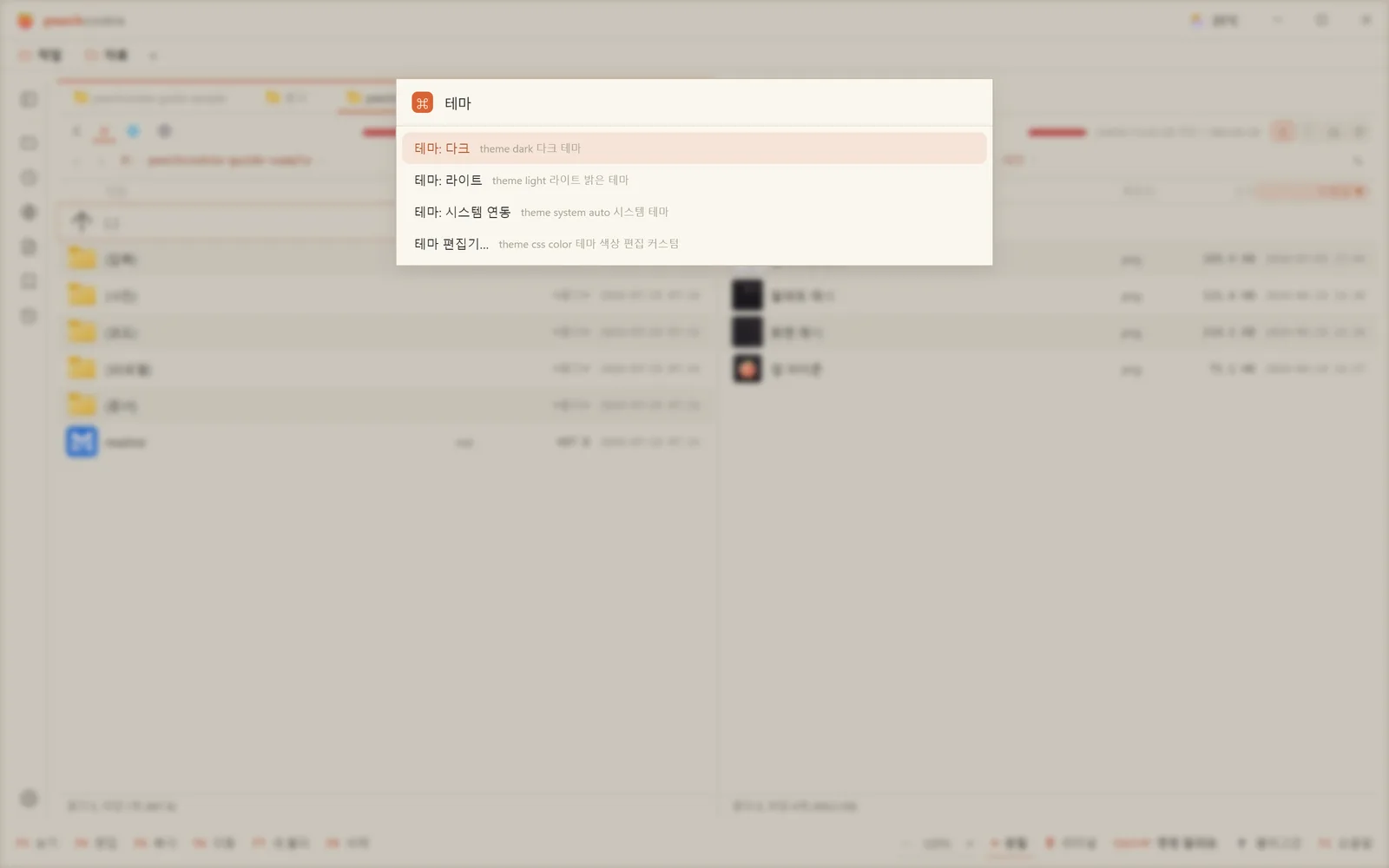
If you already use Everything
Set Settings ▸ Integration ▸ Folder search mode to Everything.
Ctrl+P then searches every folder on the system instantly.
Everything has to be installed and running.
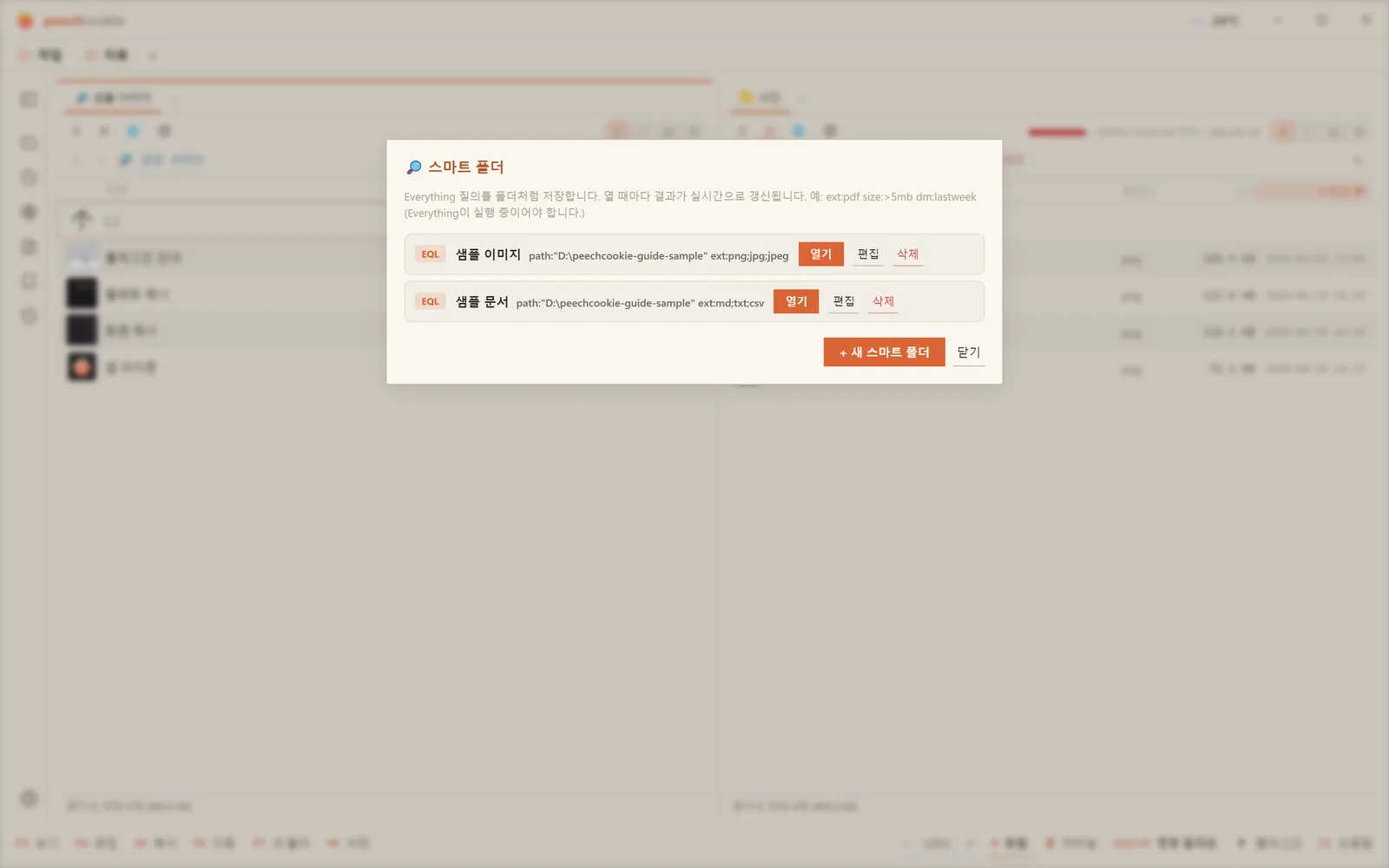
A search can be saved as a folder
A smart folder keeps an Everything query (say ext:pdf size:>5mb dm:lastweek) as if it were a folder.
Open it and the query runs then and there, showing results like a directory —
copy (F5), delete, preview, and open all behave normally.
Add and edit them from Ctrl+P → Manage smart folders, or the network menu.
“PDFs over 5MB from last week” becomes something you can just open. (Everything required.)
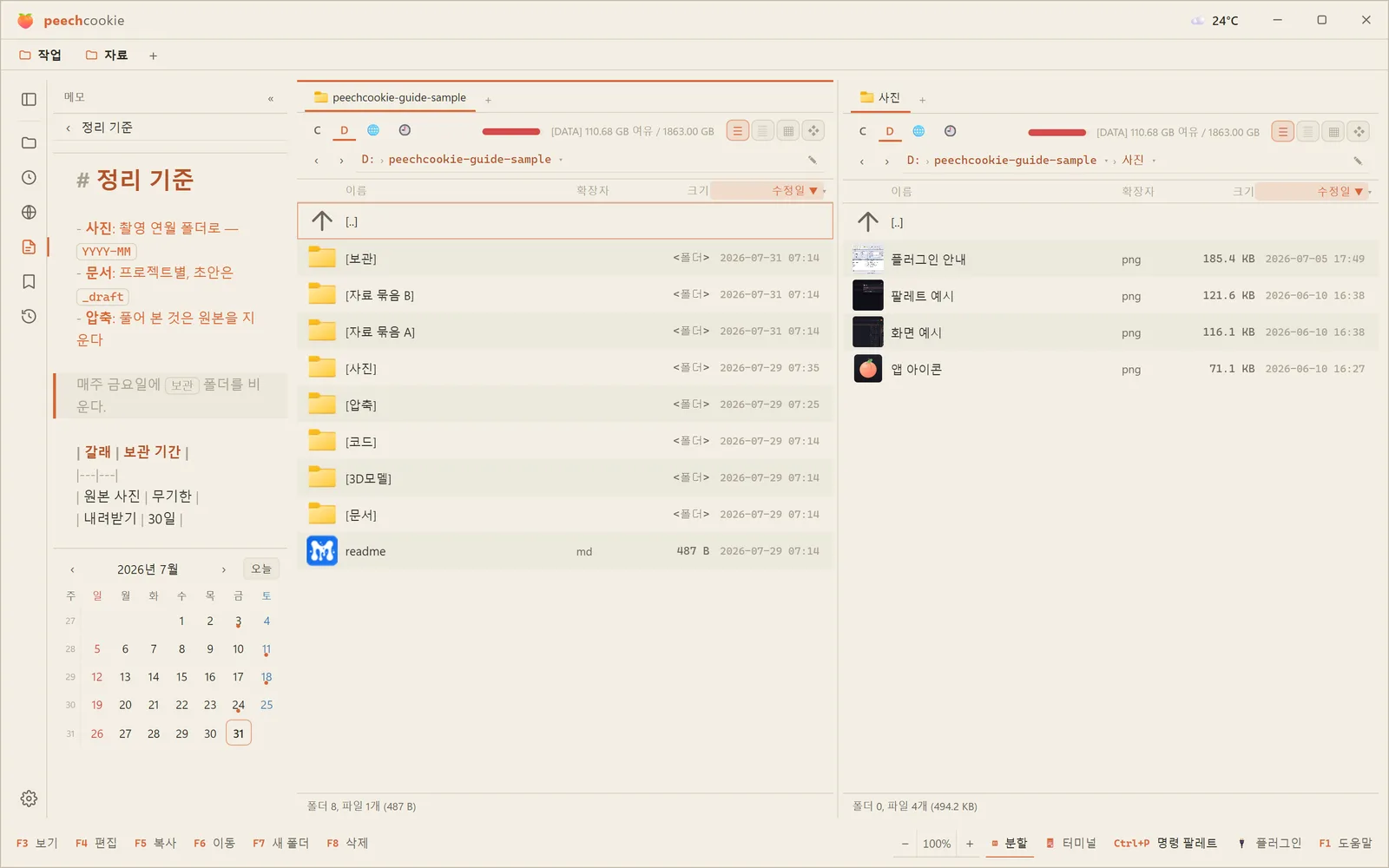
The sidebar has six panes. (Ctrl+F8)
The icon rail on the left opens. Click the active icon again to collapse just the body.
Folder tree — sortable, with an inline filter, expanding automatically to follow the active panel. Right-click for new folder, rename, delete; middle-click for a new tab. The ★ focus mode in its toolbar cuts the tree down to favorites, recent folders, and the paths above them.
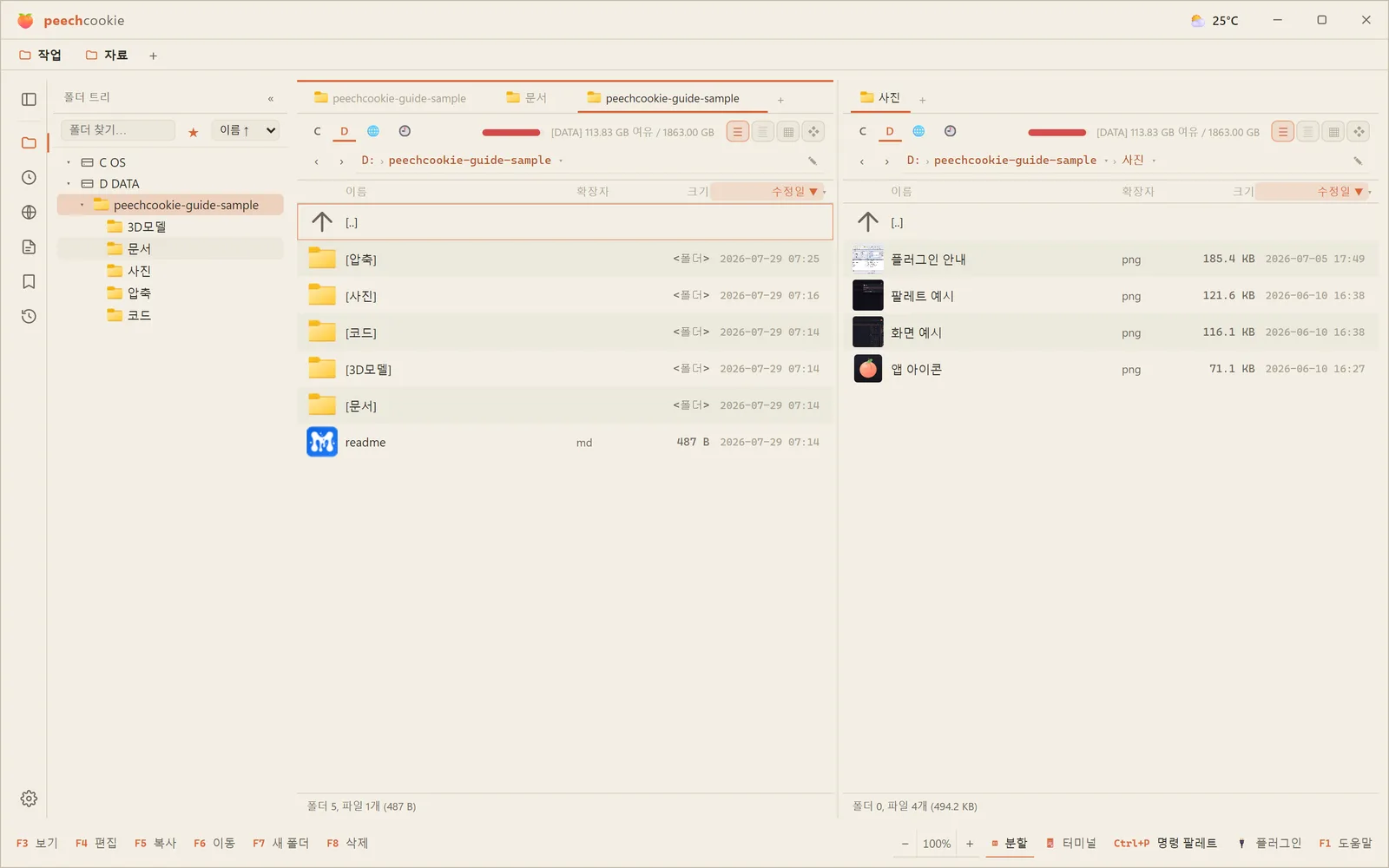
Recent folders — where you’ve been.
Network — built-in SFTP/FTP connections, WFX mounts, mapped drives. (Chapter 4)
Notes — markdown notes with Obsidian-style live preview and autosave.
The storage folder is set in Settings ▸ Navigation ▸ Notes folder;
point it at a cloud folder and the notes follow you between machines.
Calendar — a month view plus daily notes (YYYY-MM-DD.md).
Settings can pin it to the bottom of the sidebar permanently.
Operation log — this session’s copies, moves, and deletes, each undoable and redoable. (Chapter 2)
Postscript. Half of file management is checking.
Moving a file is one keystroke.
The time goes into “is this the right one” —
and Ctrl+Q and F3 exist to shorten that.